


Stay Ahead With Linux Security HOWTOs
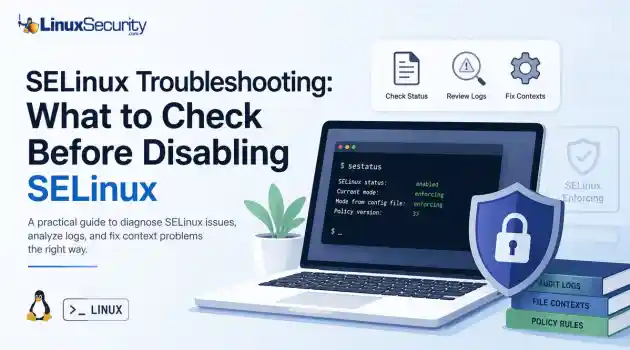
How to Harden My Filesystem access control SELinux
access control SELinux SELinux troubleshooting is a necessary skill for any system administrator. When a service fails despite correct file permissions and ownership, the immediate instinct is often to disable SELinux to confirm if the security policy is the bottleneck. While turning off enforcement frequently "fixes" the immediate symptom, it hides the underlying configuration flaw—such as an incorrect context or a policy violation—that could leave your system exposed. This guide outlines a systematic approach to...
 Jun 25, 2026
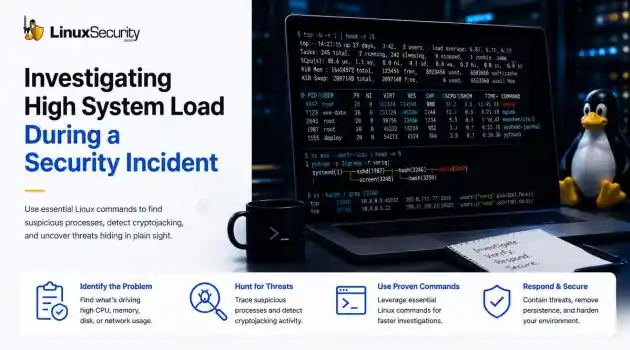
How to Secure My Networkincident response open-source
incident response open-source When a production server spikes at 99% CPU or the disk starts grinding, the knee-jerk reaction is usually to blame a bad code push or a runaway backup job. But if you’ve spent enough time in security incident response, you know that "performance issues" are often the first sign that you’re dealing with Linux malware. . If you don't have a systematic way to look past the performance graphs, you’re just guessing. Here is how you use Linux commands to peel back the layers when a system starts...
Jun 23, 2026
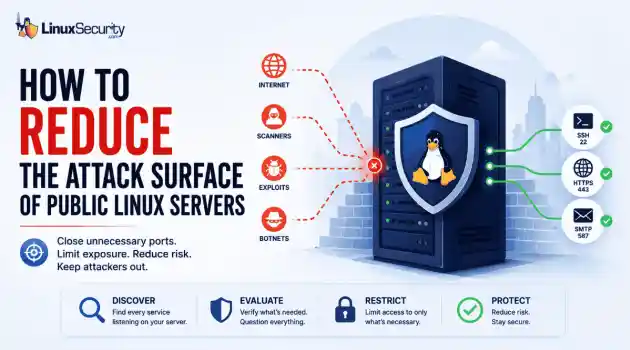
How to Secure My Networknetwork security Linux administration
network security Linux administration Open ports have a way of accumulating over time. A test environment gets deployed and never removed. An administrative interface is exposed for troubleshooting and left in place. A database that was supposed to listen internally ends up reachable from the internet. . Attackers look for these mistakes constantly. Redis, Elasticsearch, MongoDB, Jenkins, and similar services still show up on internet-facing systems where they were never meant to be exposed. Sometimes it's a temporary change that...
Jun 10, 2026
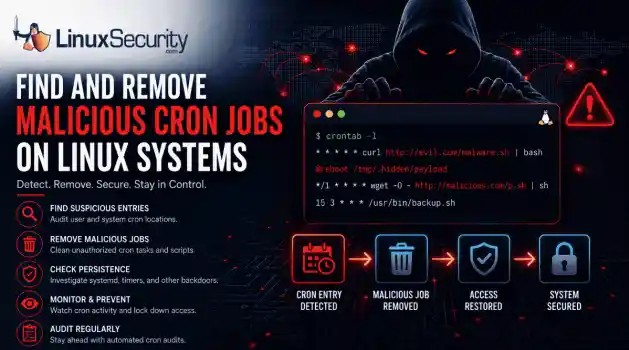
How to Secure My Networksecurity advisory intrusion detection
security advisory intrusion detection A compromised Linux server can continue running malware long after the initial intrusion. One of the most common persistence techniques is a malicious cron job that silently downloads payloads, restarts malware, or re-establishes attacker access every few minutes. This guide shows how to identify suspicious cron entries, preserve forensic evidence, remove unauthorized scheduled tasks, and verify that no additional persistence mechanisms remain. . What Should You Save Before Removing Cron Jobs...
Jun 09, 2026

How to Secure My Networkaccess control Linux administration
access control Linux administration Most SSH hardening advice ends at the same recommendation: Disable password authentication and use SSH keys. . That's good advice. It removes entire classes of attacks, including password spraying, credential stuffing, and brute-force attempts against exposed servers. The problem is what happens next. Many administrators treat SSH keys as the finish line when they are really the beginning of the hardening process. Attackers rarely care whether they obtained access with a password or a private...
Jun 05, 2026
 Refine HOWTOs
X Clear Filters
Get the latest News and Insights
Get the latest Linux and open source security news straight to your inbox.
Community Poll
Does sandboxing completely stop hackers?
Loading...
Explore Latest Linux Security HOWTOs
We found 822 articles for you...
167
 security advisoryremote accessauthentication
How to Detect Unauthorized SSH Keys on Linux Systems
Most of the time, nobody notices. SSH authentication succeeds, no alerts are generated, and the connection looks exactly the way it did the day the key was installed. That's part of the problem. . When security teams investigate unauthorized access on Linux systems, they often focus on passwords, exposed services, or vulnerable software. Trusted access receives less attention. Yet a single forgotten or unauthorized SSH key can provide the same access as a legitimate user while attracting very little scrutiny. This guide explains how to identify unauthorized SSH keys, investigate suspicious SSH activity, and determine whether the trust you've granted over time still belongs there. Why Unauthorized SSH Keys Are So Dangerous SSH keys bypass many controls that organizations traditionally depend on. A password-based attack often generates warning signs. Failed authentication attempts appear in logs. Lockout thresholds trigger. Users report suspicious activity. Security tools generate alerts. A valid SSH key behaves differently. When an attacker possesses a legitimate private key, the authentication process may look completely normal. The SSH daemon sees a trusted credential. The login succeeds. No password failures occur. No brute-force signatures appear. Nothing obviously breaks. That makes SSH keys attractive for persistence. An attacker who gains administrative access frequently adds a new public key to an existing account. Sometimes they create a new account. Sometimes they target the root directly. Other times, they hide inside a service account that rarely receives attention because administrators assume it belongs to an application. The objective is simple: maintain access after the original vulnerability gets patched. Keys also support lateral movement. Once attackers compromise one Linux host, they often search for private keys stored in home directories, automation scripts, CI/CD systems, backup repositories, or deployment servers. A single exposed private key can unlockmultiple systems. Suddenly, one foothold becomes several. The dangerous part is that none of this necessarily looks suspicious. The attacker is using a trusted authentication method exactly as it was designed to work. Where SSH Key Abuse Usually Starts Unauthorized SSH key usage rarely begins with SSH itself. The problem usually starts somewhere else in the attack chain: Developer Workstations: A compromised laptop may contain private keys used for production access. Public Repositories: Developers occasionally commit private keys, configuration files, backup archives, or deployment scripts. Automated scanning tools continuously search for exposed secrets. Service Accounts: Many organizations grant broad permissions to automation accounts because restricting access requires additional engineering work. Those accounts often hold keys that provide access across multiple environments. Vendor Access: A contractor receives temporary access to support a project. The project ends. Nobody removes the key. Months later, the account still works. Manually Added Keys: An administrator troubleshooting an outage might temporarily add a key for convenience and forget about it afterward. Step 1: Inventory Authorized SSH Keys Across Linux Systems The first step is understanding what trusted access currently exists. Many organizations cannot answer a simple question: Which SSH keys are authorized across the environment right now? Start by identifying every authorized_keys file . Most administrators immediately think about user accounts, but SSH keys appear in many places: Root accounts Service accounts Application users Automation accounts Dormant accounts Document the username, home directory, public key fingerprint, source system, key owner, business purpose, and date added, if available. This process can be tedious, but detection depends on knowing what normal looks like. If a SOC analyst discovers a public key during an investigation, the first question should be: Who owns this key? Too often, the answer is unknown. That uncertainty creates management blindness. Step 2: Compare Keys Against Known Owners Once an inventory exists, every key should be mapped to a specific owner and business purpose. A key without an owner should immediately attract attention. The same applies to keys associated with former employees, retired systems, completed projects, old vendors, or abandoned automation. Duplicate usage is another warning sign. If the same public key appears across unrelated accounts or systems, investigate why. Shared keys often emerge from convenience-based administration practices. One administrator creates a key pair and distributes it widely because it simplifies management. Convenient. Also dangerous. Compromise that one key and the attacker inherits every trust relationship attached to it. Step 3: Monitor Changes to authorized_keys Periodic audits help, but they are not enough. An attacker does not need to wait for the next quarterly review. They only need a few seconds to add a new key. Focus on locations such as: ~/.ssh/authorized_keys /root/.ssh/authorized_keys Service account SSH directories and configuration files File integrity monitoring can detect additions, removals, and modifications. Linux audit rules can also record changes and identify which process or user performed the action. Monitoring creates a timeline. A timeline reveals who changed what and when. That evidence becomes extremely valuable during incident response. Step 4: Review SSH Authentication Logs Linux authentication logs provide insight into how SSH keys are used after they are installed. Common locations include /var/log/auth.log, /var/log/secure, or journalctl. Review successful public-key authentication events rather than focusing only on failures. Several patterns warrant investigation: Logins originating from unfamiliar IP addresses. Authentication events occurring outside normal maintenance windows. Service accounts thatsuddenly begin interactive logins. Administrator accounts that have remained dormant for months and then become active again. One successful login might be legitimate. Twenty successful logins across ten servers from a previously unseen source network tell a different story. Step 5: Correlate Key Usage With User Behavior A valid key can still be used in an invalid way. Security teams should correlate SSH activity with information about users, devices, networks, and expected administrative behavior. Questions worth asking include: Did the login originate from an approved source IP? Does the user normally access systems from this network? Does the login align with the user's role and approved change tickets? Unauthorized SSH key usage often appears as a context mismatch rather than an authentication failure. The login works exactly as expected. Everything around it does not. Step 6: Look for Persistence Patterns Persistence leaves clues. Not always immediately, but attackers tend to follow recognizable patterns. Watch for a new SSH key appearing shortly after suspicious activity. High-privilege targets deserve special attention. Keys added to root accounts, infrastructure management accounts, or systems with broad sudo privileges carry elevated risk. Watch for the same key appearing across multiple hosts, as an attacker may distribute a trusted key widely. If a login is immediately followed by privilege escalation, file staging, or outbound network connections, you aren't looking at an admin—you’re looking at an adversary. Step 7: Close Audit Gaps Many SSH-related incidents are enabled by process failures rather than technical failures. Organizations often lack a centralized inventory of SSH keys. Alerting is frequently absent. A new key can be added to a production server without generating any notification. Vendor access deserves particular attention. External access is often granted quickly, but removal tends to happen much more slowly. What Security TeamsShould Alert On Security monitoring should generate alerts for: New keys added to privileged accounts Public-key logins from previously unseen source IPs Dormant users authenticating through SSH The same key appearing across unrelated accounts SSH activity outside approved maintenance windows Modifications to the SSH configuration that weaken access controls How to Respond When Abuse Is Suspected The first instinct is often to remove the key immediately. Be careful. Preserve authentication logs, shell history, audit records, and system artifacts before making changes whenever possible. Understanding how the key arrived on the system is just as important as removing it. Identify affected accounts first. Then determine which systems trust the key. Disable or remove suspicious keys only once evidence collection is complete. Rotate exposed keys. Check cron jobs, startup scripts, and scheduled tasks. Look for lateral movement because attackers rarely stop at one host when additional access is available. Prevention: Make SSH Key Trust Verifiable The strongest defense is reducing uncertainty. Every SSH key should have a documented owner, a defined purpose, and a known lifecycle. Centralized inventories help maintain that visibility. Regular reviews help remove stale access. Continuous monitoring helps identify suspicious changes before attackers can establish long-term persistence. Separate human access from service access. Treat SSH keys as privileged credentials, because that is exactly what they are. SSH keys are trusted access mechanisms, but trust alone is not a security control. Once a key is added, many organizations assume the problem is solved. Attackers benefit from that assumption. Unauthorized SSH key usage rarely resembles a brute-force attack. It rarely generates obvious authentication failures. It often looks like a successful login from a credential the system already trusts. That is why detection depends on visibility rather than simple access controls.The key that causes a future incident is often not the newest key in the environment. It is the one nobody remembered to question. Related Reading SSH Key Sprawl on Linux: Unmanaged Access Threats and Cleanup Guide Enhance Linux Server Security Through Effective SSH Best Practices Understanding Linux Persistence Mechanisms and Detection Tools . Learn how to identify and manage unauthorized SSH keys in Linux environments effectively to enhance security.. SSH Keys, Unauthorized Access, Linux Security Practices, Key Management, Security Monitoring. . Dave Wreski
 Jun 03, 2026
•
Jun 03, 2026
• How to Secure My Network
167
 intrusion detectionapplication securityopen-source
Linux IDS vs IPS: Operational Differences and Deployment Tradeoffs
The wrong IPS rule can look like a security fix right up until it becomes an outage. . On Linux systems, detection and prevention are often discussed together, but they do not carry the same operational risk. One tells admins that something suspicious happened. The other can decide whether traffic is allowed to continue. That is why IDS vs IPS is not just a definition to memorize. It is a deployment decision about where to monitor, where to block, and how much confidence a team needs before letting a tool take action. What Is the Difference Between IDS and IPS? An intrusion detection system, or IDS, monitors activity and generates alerts. It may watch network traffic, logs, file changes, process behavior, or suspicious authentication attempts. An intrusion prevention system, or IPS, monitors activity too, but it can also take action. That action might be dropping packets, resetting a connection, adding a firewall rule, or running a response script. IDS and IPS are not “set it and forget it” tools. They have to be designed, configured, monitored, and maintained like any other security control that becomes part of the environment. The short version: IDS : watches and alerts IPS : watches and blocks IDPS : combines detection and prevention functions The risk changes when a system moves from alerting to blocking. Why Does This Matter on Linux? Linux servers often run quietly in the background. A web server, mail relay, database host, VPN gateway, CI runner, or Kubernetes node may all look normal from the outside until something starts behaving differently. An IDS helps admins notice that difference. It can show repeated scans, suspicious DNS traffic, exploit attempts, unexpected service traffic, or strange activity from a host that should be quiet. An IPS goes further. It can stop traffic before it reaches the service. That sounds better, but it depends on confidence. A false alert wastes time. A false block can take down access, interrupt anapplication, or lock out legitimate users. NOTE: IDS is usually safer when you do not fully understand the traffic yet. IPS makes more sense when the traffic pattern is known, the rule is tested, and the team accepts the risk of automated blocking. How Does an IDS Work? An IDS looks for activity that matches something suspicious. That may include: Known attack signatures Protocol behavior that looks wrong Repeated login failures Unexpected file changes Suspicious outbound connections Traffic patterns that do not fit the server’s role A network IDS inspects traffic. A host-based IDS watches the system itself. Some tools do both, or send alerts into a central platform for review. For example, Suricata can inspect network traffic and write alerts to eve.json. Wazuh can then read those Suricata logs and show the alerts in a dashboard. A simple Wazuh log collection block looks like this: json /var/log/suricata/eve.json That does not block anything. It gives the team something to review. That is often where Linux admins should start. How Does an IPS Work? An IPS uses similar detection logic, but it sits closer to the decision point. When traffic matches a rule, the IPS can block it. The basic split is simple: an IDS detects and alerts, while an IPS moves to block suspicious activity before it reaches the target. That second part is where admins need to slow down, because blocking legitimate traffic is one of the fastest ways to create problems for users and security teams. An IPS is not just “IDS with stronger alerts.” It becomes part of the traffic path. If it fails, slows down, or blocks too much, the impact is operational. That does not mean IPS is bad. It means IPS should be used where the team understands the traffic well enough to trust enforcement. Passive Mode vs Inline Mode The cleanest way to explain IDS vs IPS is placement. Passive mode watches traffic from the side. Inline mode sitsin the path. Passive mode lets Snort observe and detect traffic on an interface. Inline mode gives Snort the ability to block traffic, and the mode changes based on how traffic is passed into Snort . Passive inspection might look like this: snort -i eth0 That tells Snort to inspect traffic on eth0. Inline mode is different: snort -Q --daq afpacket -i "eth0:eth1" Now traffic is moving through paired interfaces. Snort is not just observing. It can affect what passes through. That is the deployment tradeoff in one place. Passive mode gives visibility with less risk. Inline mode gives more responsibility. When Should You Use IDS First? Use IDS first when the environment still needs a baseline. That usually includes: New deployments Busy production networks Servers with unclear traffic patterns Cloud or hybrid environments with limited visibility Teams that are still tuning rules Systems where downtime would be worse than a delayed response IDS helps answer basic questions before blocking begins. What talks to this server? Which alerts are noisy? Which rules fire every day? Which detections actually matter? Which traffic is strange but expected? Do not skip that work. If a team cannot explain the alerts, it probably should not automate the blocks yet. A good IDS phase should produce useful decisions, not just more logs. After a few weeks of review, admins should know which rules are noise, which ones are valuable, and which ones might be safe enough to enforce later. When Does IPS Make Sense? IPS makes sense when the traffic is understood, and the action is worth the risk. Good IPS candidates usually have: A clear traffic path Tested detection rules Low tolerance for the activity being blocked A rollback plan Someone responsible for tuning Logging that shows what was blocked and why A gateway protecting a narrow service may be a good place for IPS. A high-change production segment with poorly understood trafficmay not be. In one setup, Suricata uses Netfilter queues, and iptables sends traffic into that queue for inspection. To run Suricata with NFQUEUE: sudo suricata -c /etc/suricata/suricata.yaml -q 0 To send forwarded gateway traffic to Suricata: sudo iptables -I FORWARD -j NFQUEUE For a host-based setup, traffic can be queued from input and output paths: sudo iptables -I INPUT -j NFQUEUE sudo iptables -I OUTPUT -j NFQUEUE These commands are useful, but they are not casual changes. Once traffic is queued, the inspection path matters. If the queue fails, the behavior depends on how the system is configured. What Can Go Wrong With IPS? IPS problems usually come from confidence moving faster than testing. Common issues include: Legitimate traffic blocked by broad rules Latency from heavy inspection Rules enabled without understanding the impact Missing bypass or failover planning Alerts treated as proof instead of evidence Old exceptions nobody reviews Rule updates are changing behavior unexpectedly The tricky part is that IPS failures may look like normal outages at first. Users cannot reach a service. A deployment fails. A connection resets. A vendor integration stops working. Security may not be the first team blamed, but the IPS may still be the cause. NOTE : If an IPS blocks traffic, the team should be able to answer three questions quickly: what rule fired, what traffic was blocked, and how to reverse the decision if needed. What About Host-Based IDS and IPS? Not all detection happens on the network. Host-based tools watch the Linux system itself. They may monitor logs, file changes, users, processes, commands, or repeated authentication failures. Tripwire for file integrity monitoring fail2ban for blocking repeated login attempts OSSEC or Wazuh for host monitoring and alerting auditd for system-level event visibility Host-based prevention can be useful because it is often narrow. For example, fail2ban may blockan IP after repeated SSH failures. That is easier to reason about than blocking broad application traffic across a network segment. Still, the same rule applies. Automate only what you understand. Blocking one abusive SSH source is different from pushing a bad firewall rule across every Linux server in the environment. How Should Admins Decide? Start with the system’s job. A database host should not behave like a CI runner. A mail relay should not behave like a web server. A backup system may need outbound access that would be strange on another host. Before choosing IDS or IPS, ask: What is this system supposed to receive? What is it supposed to send? Which traffic is normal? Which traffic should never happen? Who reviews alerts? Who owns rule tuning? What happens if prevention blocks the wrong thing? How fast can the team roll back? If the answers are unclear, use IDS first. If the answers are clear and the risk is high, IPS may be appropriate. How Do IDS and IPS Fit With Modern Security Tools? Many teams no longer run IDS and IPS as isolated tools. Detection and prevention may come from firewalls, endpoint agents, SIEM platforms, XDR tools, NDR tools, cloud controls, and Linux-native monitoring. Modern security stacks often combine both ideas: IDS provides monitoring and evidence, while IPS provides control, with many teams now using detection and prevention alongside broader security tooling . That is a useful way to think about it. IDS and IPS are not replacements for patching, hardening, logging, segmentation, access control, or incident response. They support those efforts. The best setup is usually layered. Firewalls limit access. IDS shows suspicious activity. IPS blocks high-confidence threats. Host monitoring catches local behavior. Logs and alerts feed investigation. Admins tune the system as the environment changes. No single layer catches everything. What Linux Admins Should Keep in Mind IDS vs IPS isnot about which one is better. It is about what the system should be trusted to do. Use IDS when you need visibility, context, and safer testing. Use IPS when the traffic is understood, the rule is reliable, and blocking is worth the operational risk. Most Linux environments benefit from both, but not everywhere and not in the same way. Detection can be broad. Prevention should be deliberate. Watch first where context is missing. Block only where confidence is high. Stay Ahead of Linux Security & Infrastructure Trends Interested in more in-depth coverage of Linux monitoring, intrusion detection, firewall behavior, prevention strategies, and enterprise hardening? Subscribe to the LinuxSecurity newsletter for weekly threat analysis, infrastructure security insights, and practical guidance covering the Linux and open-source ecosystem. Related Reading Linux Server Monitoring Essential for Modern Security Operations Understanding Linux Persistence Mechanisms and Detection Tools Strengthening Linux SSH Configurations to Prevent Proxy Attacks Egress Filtering Primer for Monitoring Outbound Traffic . Explore the differences between IDS and IPS in Linux environments, highlighting deployment trade-offs and operational risks.. Linux Intrusion Detection System, Intrusion Prevention System, Linux Security, Application Security Solutions, Open Source Monitoring Tools. . Dave Wreski
Jun 01, 2026
•
How to Secure My Network

167
 unauthorized accesssecurity techniquesSSH
How To Understand Failed Authentication Patterns in Linux Logs
Exposed SSH servers are continuously hammered by brute-force attacks, password spraying, credential stuffing, and recycled passwords from infostealer dumps. Attackers rotate usernames, test weak credentials, and probe for anything that gives them initial access. The logs usually look messy long before the compromise happens. . The difficult part is separating harmless failures from actual intrusion activity. One failed login from an internal workstation rarely matters. Repeated failures against privileged accounts from cloud VPS ranges usually do. Especially when sudo activity or successful authentication starts appearing afterward. This guide walks through how failed authentication activity appears in Linux SSH and PAM logs, how brute-force attacks differ from password-spraying operations, and how administrators surface suspicious login patterns before attackers establish persistence or reach root access. Raw auth logs get noisy fast. Understand Where Linux Authentication Logs Are Stored Linux distributions store authentication events in different locations depending on the platform. Debian and Ubuntu systems typically write authentication logs to: /var/log/auth.log RHEL, CentOS, AlmaLinux, and Rocky Linux systems usually use: /var/log/secure Modern Linux systems running systemd may also expose authentication activity directly through the system journal: journalctl -u ssh Authentication logs usually contain entries generated by both the SSH daemon ( sshd ) and PAM, which stands for Pluggable Authentication Modules. They appear together because SSH relies on PAM during the authentication process itself. SSH handles the network connection. PAM handles authentication checks, account validation, session management, and policy enforcement. That’s why one SSH login attempt can generate multiple related log entries within seconds. New administrators often think the logs are duplicated at first. They aren’t. Authentication logs generally contain four types of events: Failed login attempts Successful logins Session openings and closures Privilege escalation activity through sudo or su One of the most common ways administrators monitor authentication activity is by tailing logs in real time. sudo tail -f /var/log/auth.log Or on RHEL-based systems: sudo tail -f /var/log/secure “Tailing” logs simply means watching new log entries appear live as the file updates. Authentication events are chronological, so the newest events appear at the bottom. This helps administrators observe SSH activity while reproducing login attempts or investigating suspicious behavior. You can also review SSH-specific events through the journal: journalctl -u ssh That becomes useful on systems where older logs rotate quickly or where journald stores events centrally instead of relying entirely on flat files. Learn What Normal Failed Login Activity Looks Like Most failed authentication events are harmless. Linux systems generate routine login failures constantly during normal operations. Users mistype passwords. Somebody tries the wrong SSH username. A scheduled task continues using an old password after credentials change. Service accounts fail periodically when applications restart with outdated secrets. It happens everywhere. A normal failed SSH login often looks like this: Failed password for john from 192.168.1.25 port 51122 ssh2 You’ll usually see a related PAM entry nearby: pam_unix(sshd:auth): authentication failure; user=john These entries typically belong to the same authentication attempt. SSH records the failed password event while PAM records the internal authentication failure generated during credential validation. A single failed password attempt is common and usually harmless. Administrators should focus more on frequency, repetition, timing, and source behavior instead of isolated events. One failed login from an internal workstation rarely matters. Repeated failures against multiple accounts fromunfamiliar external IP addresses matter a lot more. Authentication logs also help administrators monitor long-term patterns. Repeated failures tied to the same system, user account, or subnet often reveal configuration problems before they become security issues. Sometimes broken automation looks almost identical to credential abuse at first glance. How to Detect Brute Force Attempts in SSH Logs Brute force attacks are usually easy to recognize once the pattern becomes repetitive. Attackers repeatedly attempt passwords against the same account until something works or the target blocks further access. Internet-facing Linux servers see this constantly. Especially SSH services exposed directly to the public internet. Administrative accounts like root get targeted heavily because attackers already know the username exists on many Linux systems. They only need to guess the password. Brute force activity often looks like this: Failed password for root from 185.220.101.4 port 55872 ssh2 Failed password for root from 185.220.101.4 port 55881 ssh2 Failed password for root from 185.220.101.4 port 55903 ssh2 The source IP remains consistent while the connection port changes with each new SSH attempt. That’s normal behavior because every SSH connection opens a separate session. Administrators usually start by searching for failed password events directly: grep "Failed password" /var/log/auth.log To focus specifically on root targeting: grep "Failed password for root" /var/log/auth.log This becomes more useful when combined with IP aggregation: awk '/Failed password/ {print $(NF-3)}' /var/log/auth.log | sort | uniq -c That command extracts source IP addresses from failed authentication entries, sorts them, and counts how often each address appears. Repeated login attempts from the same external IP usually stand out quickly. What matters operationally is repetition. One failed SSH login is normal. Hundreds of failures targeting the same administrativeaccount from the same host usually indicate automation. The MITRE ATT&CK framework tracks brute force authentication abuse under T1110 Brute Force . MITRE documents how attackers automate password guessing against exposed services, administrative accounts, and remote access infrastructure. The behavior described there closely matches what administrators see inside Linux authentication logs during active SSH attacks. Attackers automate these attempts because eventually, weak passwords work. Especially on systems that were not hardened properly after deployment. How to Identify Password Spraying in Linux Authentication Logs Password spraying looks different from traditional brute force activity. Instead of attacking one account repeatedly with many passwords, attackers try a small number of passwords across many usernames. Slower. Quieter too. The goal is to avoid account lockouts while testing reused credentials at scale. Many lockout policies trigger after repeated failures against a single account. Password spraying sidesteps that problem by rotating usernames instead. A spraying attempt may look like this: Failed password for admin from 203.0.113.44 Failed password for backup from 203.0.113.44 Failed password for finance from 203.0.113.44 One source IP rotates through multiple usernames carefully over time. Attackers often target predictable accounts first: admin backup finance support deploy test Administrators can start reviewing spraying behavior with simple searches: grep "Failed password" /var/log/auth.log | awk '{print $11}' Or broader sorting: grep "Failed password" /var/log/auth.log | sort Timestamps matter heavily during spraying investigations. Attackers intentionally spread attempts across longer periods to remain below alert thresholds and avoid triggering lockout policies. Ten failures over an hour often attract less attention than ten failures in thirty seconds, even though the intent is the same. This is why authentication logs should always be reviewed as sequences instead of isolated events. Password spraying tends to look subtle until someone lines up the timestamps properly. How to Investigate Stolen Credential Abuse Failed authentication attempts become much more serious once attackers successfully log in. At that point, the investigation shifts from attempted access to potential compromise. A successful SSH login following repeated failures deserves immediate review. Example: Accepted password for backupadmin from 203.0.113.44 port 60211 ssh2 Then shortly afterward: sudo: session opened for user root That sequence matters because attackers frequently escalate privileges immediately after gaining initial access. Especially if compromised accounts already have sudo access or weak privilege restrictions. Administrators investigating suspicious authentication activity usually begin with successful login searches: grep "Accepted password" /var/log/auth.log Then review privilege escalation events: grep "session opened" /var/log/auth.log A practical investigation workflow usually looks like this: Review failed logins leading up to successful authentication Identify the originating IP address Compare timestamps between failures and successful access Review sudo activity and privilege escalation Determine whether the behavior matches normal operational patterns Suspicious login timing often becomes a strong indicator. Administrative accounts authenticating at unusual hours from unfamiliar IP addresses deserve attention, even if the credentials themselves were valid. Research from Elastic Security Labs and Splunk Security Research consistently emphasizes correlating failed and successful authentication activity together instead of reviewing them independently. Rapid privilege escalation, abnormal login velocity, and suspicious authentication sequencing frequently appear during SSH compromise investigations. This iswhere authentication logs stop being troubleshooting data and start becoming incident response evidence. Understand PAM Authentication Failure Messages PAM messages confuse many administrators because the entries look verbose and disconnected from normal SSH logging. They actually provide useful context once you understand how PAM works during authentication. PAM, or Pluggable Authentication Modules, handles authentication processing for many Linux services, including SSH. During login attempts, PAM modules validate credentials, apply account restrictions, enforce authentication policies, and create sessions. That’s why PAM entries appear beside SSH daemon logs constantly. A typical PAM authentication failure looks like this: pam_unix(sshd:auth): authentication failure; logname= uid=0 euid=0 tty=ssh A successful session creation may appear like this: pam_unix(sshd:session): session opened for user john Administrators commonly search PAM-specific activity using: grep "pam_unix" /var/log/auth.log Or through the system journal: journalctl | grep pam PAM logs supplement SSH logs by showing different stages of authentication processing. One SSH login attempt may generate multiple PAM events, including: authentication failure user validation session opened session closed This is normal behavior. PAM modules log actions separately as the authentication process moves through different stages internally. Beginners often assume multiple PAM entries indicate multiple login attempts. Usually, they belong to the same session sequence instead. The Red Hat PAM documentation explains how PAM modules generate authentication and session events during login processing. Understanding those stages helps administrators interpret Linux authentication logs more accurately during both troubleshooting and security investigations. PAM fills gaps that SSH logging alone doesn’t always explain clearly. How to Respond to Suspicious Authentication Activity Once suspicious authentication behavior appears, response speed matters. Attackers rarely stop after gaining initial access. Start by identifying exposed or compromised accounts. Disable accounts showing suspicious activity until the investigation finishes. sudo passwd -l username Review whether Fail2Ban or equivalent rate-limiting protections are active: sudo systemctl status fail2ban Then inspect the SSH daemon configuration d irectly: sudo nano /etc/ssh/sshd_config Several SSH settings reduce exposure significantly: PermitRootLogin no PasswordAuthentication no Disabling password authentication forces SSH key usage instead of credential-based logins. Restricting direct root login removes one of the most heavily targeted accounts from external authentication attempts entirely. Administrators should also review: sudo rules firewall restrictions privileged accounts dormant users MFA coverage SSH key management IP-based access restrictions help reduce the attack surface further on systems that only require administrative access from trusted locations. Continuous log monitoring matters too. Authentication abuse usually escalates gradually. Attackers test footholds quietly first, then move toward privilege escalation once they understand the environment. Most compromises leave warning signs in the logs long before defenders notice the breach itself. Conclusion Failed authentication attempts happen on every Linux system. Most is harmless operational noise. The patterns behind those failures often reveal much more. Brute-force attacks, password-spraying campaigns, and stolen-credential abuse all leave traces in SSH and PAM logs before attackers establish persistence or gain root access. Administrators who understand those patterns can investigate suspicious activity more quickly and reduce the chances of unauthorized access going unnoticed. Authentication logs become far more useful once you stop reading individual entries andstart tracking behavior over time. Repetition matters. Timing matters. Successful logins after repeated failures matter even more. Linux logs look chaotic initially. Eventually, the attack patterns start standing out on their own. Want more Linux security guidance, threat analysis, and hardening tutorials delivered directly to your inbox? Subscribe to the LinuxSecurity.com newsletter for practical updates, emerging threat coverage, and operational Linux administration tips. Related Reading Fail2ban Linux Security Brute Force Protection and Monitoring PAM: Important Risks in Linux Authentication Trust Chain Essential Log Management Tools for Effective Linux Security Detecting Lateral Movement on Linux Systems Without EDR Securing Remote Access to Linux Servers: Best Practices for 2026 . Learn to identify and respond to failed authentication patterns in Linux logs to enhance your security posture effectively.. Linux Security, Authentication Logs, Access Monitoring. . MaK Ulac
May 28, 2026
•
How to Secure My Network
167
 security advisoryincident responsemalware detection
How to Respond After Detecting a Compromised Linux Server
The first 30 minutes after discovering a compromised Linux server usually decide how much evidence remains available. One rushed reboot or cleanup attempt can wipe logs, terminate malicious processes, or remove network activity that investigators still need to review. Attackers also do not usually stay on one system for long once access is established. Early response is mostly about preserving visibility. Collect process information. Save network connections. Limit access carefully before making major changes to the system. . Step 1: Verify the Server Is Actually Compromised Start by confirming the server is actually compromised. Broken applications, failed deployments, and unstable services can create symptoms that look malicious at first. Early triage is mostly about identifying unauthorized access, suspicious processes, and unexpected network activity before making changes to the system. who w last -a Look closely at: Unknown usernames Source IP addresses you do not recognize Logins at unusual hours Simultaneous sessions from different locations Sessions that remain active longer than expected An SSH login from another country at 3 AM does not automatically confirm compromise, but it should immediately raise questions. The same goes for service accounts logging in interactively when they normally do not. Once login activity looks suspicious, move directly into process inspection. Attackers often leave behind running malware, reverse shells, persistence scripts, or crypto miners. ps auxf top pstree -p This stage is less about memorizing process names and more about spotting behavior that feels wrong for the system. Things worth investigating include: Suspicious Behavior Why It Matters Processes running from /tmp Malware often hides in temporary directories Randomized process names Attackers rename malware to avoid detection Unexpected parent-child relationships A web server spawning shells is a bad sign High CPU usage with no explanation Common with crypto mining malware Shells started by application users May indicate command execution abuse A compromised web server spawning /bin/bash underneath an Apache or Nginx process deserves immediate attention. After checking processes, inspect network activity. A server talking to unfamiliar systems or listening on unexpected ports may already be under remote control . ss -plant lsof -i -P -n Pay attention to: Unknown listening ports Outbound connections to unfamiliar IPs Established sessions with cloud VPS providers Reverse shell behavior Services binding to unusual interfaces A reverse shell often appears as a process maintaining an outbound connection to a remote host over a strange high-numbered port. If the server normally only handles web traffic but suddenly maintains persistent outbound sessions to external infrastructure, that is not normal operational behavior. Step 2: Do Not Reboot the Server Yet In most cases, rebooting a compromised Linux server too early destroys valuable evidence . Memory-resident malware disappears. Active network connections vanish. Temporary files get deleted. Shell history stored only in memory may never be recoverable again. A reboot can also terminate the exact malicious process you were trying to investigate. That sounds helpful until you realize it removes the ability to understand what the attacker was doing, how they got in, and whether they still have access somewhere else. The following artifacts may disappear after a reboot: RAM-based malware Active reverse shells Running attacker processes Unsaved shell history Temporary files under /tmp Active network sessions Evidence tied to process memory Avoid rebooting the server unless the situation is actively getting worse. Preserve logsfirst. Save process information. Capture active network connections before changing services or killing processes. In ransomware or destructive attacks, emergency shutdowns may still become necessary. Outside of those situations, immediate reboots usually create more problems for the investigation. Step 3: Isolate the Server Carefully Most compromised servers should be isolated quickly, but investigators still need access to the system. The goal is to limit attacker movement without cutting off visibility completely. Good containment limits external access while keeping the server reachable for evidence collection and review. Good Containment Methods Action Why It Helps Remove the server from the load balancer Prevents users from reaching a compromised application Restrict inbound traffic with firewall rules Limits new attacker access Isolate the system in a dedicated VLAN Reduces lateral movement risk Block internet egress traffic Stops outbound command-and-control communication Preserve secure SSH access Allows investigators to continue evidence collection A cloud workload might be isolated by changing security groups. An on-premises server might move into a quarantine VLAN. The exact method changes between environments, but the objective stays the same. Bad Containment Methods Some responses create more problems than the attackers themselves. Pulling the power cable Wiping the virtual machine immediately Deleting suspicious files before analysis Restarting services blindly Running cleanup scripts without evidence collection Deleting malware immediately feels productive, but it often destroys indicators investigators need later. The same malicious file may reveal persistence methods, attacker tooling, or lateral movement paths across the environment. Containment should slow the attacker downwithout destroying the evidence trail. Step 4: Capture Volatile Evidence Immediately Volatile evidence disappears fast. Running processes terminate. Network connections close. Logs rotate. This is the stage where responders start preserving everything they may need later for investigation, reporting, or legal review. Begin with process information. Save Process Information These commands create snapshots of currently running processes. ps auxf > /root/processes.txt pstree -p > /root/pstree.txt The redirected output preserves the process tree exactly as it existed during the investigation. That matters because attackers often terminate malware once they realize they have been detected. Move next into network evidence. Save Network Connections ss -plant > /root/network_connections.txt lsof -i -P -n > /root/open_sockets.txt This helps identify: Remote command-and-control infrastructure Reverse shells Internal lateral movement Suspicious listening services Unexpected outbound sessions A single established connection to an unfamiliar VPS provider can become the clue that ties the compromise together later. Then, preserve user activity. Save Logged-In User Activity who > /root/logged_in_users.txt last -a > /root/login_history.txt Historical login records often reveal how long the compromise existed before detection. Attackers regularly use valid credentials after initial access, especially when moving laterally. Logs should also be preserved before rotation occurs. Preserve Logs Before Rotation cp -r /var/log /root/log-backup journalctl > /root/journalctl.txt Linux systems rotate logs automatically. A busy server may overwrite critical authentication or application records quickly , especially during active attacks. Useful logs commonly include: Log Source What It Reveals /var/log/auth.log SSH logins and failed authentication /var/log/secure Security-related events on RHEL-based systems journalctl Systemd event history Web server logs Exploitation attempts and suspicious requests Cron logs Unauthorized scheduled tasks At this stage, documentation matters almost as much as evidence collection. Record timestamps. Save commands used during the investigation. Keep notes on every change made to the server. Step 5: Check for Persistence Mechanisms Attackers rarely compromise a server and leave voluntarily. Persistence mechanisms help them regain access after reboots, password resets, or partial cleanup efforts. This is why compromised systems often appear clean at first and then become compromised again days later. Cron jobs are one of the most common persistence methods on Linux systems. Inspect Cron Jobs crontab -l ls -la /etc/cron* Look for: Scripts executing from /tmp Obfuscated shell commands Base64-encoded payloads Unknown scheduled jobs Tasks running as root unexpectedly Attackers like cron because it survives reboots and blends into normal system administration. SSH keys are another common persistence method, especially after credential theft. Review SSH Keys cat ~/.ssh/authorized_keys Unauthorized SSH keys allow attackers to reconnect without passwords. Compare keys against known administrators and remove anything unexplained only after preserving copies for investigation. Persistence also appears inside systemd services. Inspect Systemd Services systemctl list-units --type=service systemctl list-unit-files Suspicious services often: Use vague names Restart automatically Execute scripts from unusual directories Launch hidden shells or networking tools A fake service named system-update.service launching a binary from /tmp/.cache should not be ignored. Startup scripts deserve inspection too. Check StartupScripts Common locations include: /etc/profile /etc/rc.local /etc/init.d/ /etc/bash.bashrc Attackers sometimes inject commands directly into startup scripts so malware launches every time a user logs in or the server boots. Kernel-level persistence is harder to detect and far more dangerous. If root access was obtained, trust in the operating system itself becomes questionable. Step 6: Determine How the Attackers Got In Understanding the initial entry point matters because cleanup without fixing the original weakness usually leads to reinfection. Attackers rarely use complicated techniques when simple exposure works. The most common Linux compromise paths include: Exposed SSH services Weak or reused passwords Vulnerable web applications Public-facing admin panels Credential theft through phishing Unpatched software packages Default credentials left unchanged Authentication logs provide a good starting point. lastb grep "Failed password" /var/log/auth.log Large numbers of failed SSH logins may indicate brute-force activity. A successful login immediately after repeated failures deserves investigation. Web servers should also be reviewed carefully. Exploited applications often leave traces in access logs. Things to look for include: Indicator Possible Meaning Requests containing long encoded strings Command injection attempts Requests to unknown PHP or JSP files Web shell activity POST requests to admin endpoints Credential abuse Repeated exploit attempts Automated scanning Outdated packages create another common entry point. Attackers routinely target publicly known vulnerabilities within days of disclosure. The longer internet-facing systems remain unpatched, the higher the risk becomes. The investigation may eventually show that the compromise began outside the server itself. Stol FinalThoughts A compromised Linux server can turn into a larger incident quickly if the response is rushed. Reboots, cleanup attempts, and configuration changes made too early often remove the evidence investigators still need. Early response work is mostly about preserving visibility long enough to understand the scope of the compromise. Save process data. Preserve logs. Identify active connections. Check whether the attacker established persistence or moved into other systems. A server may also appear stable after basic remediation while the original access path still exists. Unpatched applications, exposed admin services, stolen SSH keys, and reused credentials commonly lead to repeated compromise. In higher-severity incidents, rebuilding from a trusted image is often safer than attempting partial cleanup on a compromised host. Especially after root-level access or suspected persistence inside the operating system. FAQ Should I disconnect a compromised Linux server from the network immediately? Usually, yes, but isolation should be controlled. The goal is to limit attacker movement while preserving evidence and maintaining investigator access. Instead of powering the server off immediately, restrict inbound and outbound traffic carefully. Remove the system from production traffic if possible while preserving secure access for forensic review. Should I reboot a hacked Linux server? Usually no. Rebooting destroys volatile evidence, including memory artifacts, active attacker sessions, temporary malware files, and live network connections. Exceptions exist during destructive ransomware events or situations where active compromise threatens other systems immediately. What logs should I check after a Linux server compromise? Start with authentication and system logs. Common sources include: /var/log/auth.log /var/log/secure journalctl Apache or Nginx access logs Cron logs Audit logs Application logs These logs help identify loginactivity, exploitation attempts, persistence, and lateral movement. How do attackers maintain persistence on Linux servers? Attackers commonly maintain persistence through: SSH authorized keys Cron jobs Systemd services Startup scripts Web shells Kernel modules Hidden user accounts Persistence mechanisms are designed to survive reboots and partial cleanup. Can a compromised Linux server ever be trusted again? Sometimes, but root-level compromise changes the situation significantly. If attackers gained administrative access, complete trust in the operating system may be impossible to restore confidently. Many organizations rebuild compromised systems entirely instead of attempting a deep cleanup. What is the first thing to collect during incident response? Volatile evidence should be collected first. That usually includes: Running processes Active network connections Logged-in users Memory artifacts Open sockets Authentication logs This information disappears quickly once systems reboot or attackers detect investigation activity. Related Reading What Is SELinux? A Practical Take for Linux Admins Understanding Log Management and Analysis Tools for Linux Systems Top Linux Vulnerability Scanners in 2026: A Guide to Open-Source Security Tools Why CI/CD Pipelines Became Targets in Software Supply Chain Attacks RubyGems Attack Highlights Open Source Supply Chain Risks for Linux Teams . Learn critical steps to respond effectively after detecting a compromised Linux server to preserve evidence and contain threats.. Linux Security Incident Response, Server Compromise Analysis, Malware Detection Tactics, Evidence Preservation Strategies. . Dave Wreski
May 28, 2026
•
How to Secure My Network
167
 network monitoringLinux serversecurity investigation
How to Diagnose Suspicious Outbound Connections on Linux Servers
When a Linux server initiates an unauthorized outbound connection to an unknown IP address, it rarely triggers an immediate system failure. Instead, the server continues running normally, and the connection is usually only discovered during a routine firewall log review, a DNS audit, or a post-incident investigation. Because there are no obvious system crashes or performance drops, these quiet outbound sessions can easily be overlooked. . However, treating these anomalies lightly is a significant security risk. While an unexpected connection might simply be a misconfigured monitoring agent, a new package repository, or a developer's temporary test script, it can also be the first warning sign of a compromised host. Once attackers gain access to a server, they rely on outbound connections to download malicious tools, receive commands from a command-and-control server, or exfiltrate sensitive data. To secure your environment, you cannot rely on guesswork. When a server communicates in a way that contradicts its defined role, you must systematically investigate the traffic, isolate the specific local process responsible, and determine whether the connection is legitimate or malicious. Why Does Outbound Traffic Matter on a Linux Server? Most Linux hardening discussions focus on what can reach the server. SSH exposure, open ports, web application attacks, firewall rules, and failed logins. That is still important, but it only covers one side of the problem. Once a server is compromised, the attacker often needs the server to call out. That outbound connection may be used to: Download a tool Receive commands Resolve attacker-controlled infrastructure Send stolen data Keep a quiet foothold alive It may look like normal HTTPS or DNS because those protocols are already common in most environments. The practical question is not “Is outbound traffic bad?” Linux servers need outbound access for real work. The question is whether this specific server, running this specificprocess under this specific account, should connect to that destination at that time. NOTE : A web server connecting to an internal API may be expected. The same web server connecting to an unknown VPS provider from a PHP child process is different. A CI runner talking to registries and cloud APIs may be normal. A database host making repeated HTTPS requests to random domains should get attention fast. What Should You Check First? 1. Start with the server’s purpose This sounds basic, but it prevents wasted time. Before chasing an IP reputation score, ask what the host is supposed to do. A DNS resolver, mail relay, Kubernetes node, Git runner, web server, database server, and backup appliance all have different normal traffic. You cannot judge the connection without that context. 2. Identify the local process This is where the investigation becomes concrete. An unknown IP address is vague. A process name, user account, parent process, and binary path give you something to work with. A quick live check may start with: Bash ss -tunap lsof -i -n -P Use those as snapshots, not proof. Short-lived connections may be gone before you run the command. On busy hosts, the output can also be noisy. Still, when the connection is active, these commands often tell you whether you are looking at a normal daemon, an admin session, a script, or something that should not be there. The useful details are simple: Process name and PID Local user Remote address and port Whether the connection is established or only briefly appears Write them down. Do not trust memory during an incident. How Do You Decide Whether the Process Makes Sense? The process should fit the server’s job. That is the main test. What makes sense: A package manager reaching a known repository during a patch window, a backup agent connecting to its configured backup target, or a monitoring daemon sending data to the monitoring platform. Those still need validation, but they are atleast plausible. What raises suspicion: When the process does not belong in the network path. Shells, interpreters, and temporary binaries should not usually be opening unexplained outbound connections from production servers. There are exceptions, but exceptions should have owners. Look closely at processes like bash, sh, python , perl, php, node, curl, wget, and unknown binaries in writable paths. A script in /opt/company/scripts/ may be part of operations. A binary in /tmp or /dev/shm with an ordinary-looking name is a different conversation. Parent process matters: curl launched by a known deployment job is one thing. curl launched by a web server worker is another. python running from an application virtual environment may be normal. python running from an upload directory after a suspicious web request is not normal at all. Do not stop at the process name. Attackers rename files. A process called systemd-update is not trustworthy just because the name looks familiar. Check the path, ownership, command line, start time, and parent. What Does Beaconing Look Like in Practice? Beaconing is repeated outbound contact. A compromised host checks in with an external system, often with small amounts of data. Sometimes it happens every minute. Sometimes every hour. Sometimes the timing shifts slightly to avoid looking too mechanical. In practice, beaconing often looks boring. That is the trick. You may see the same server contacting the same destination again and again. The traffic may be small. The connection may close quickly. DNS may happen right before the connection. The process may sleep, wake up, connect, then disappear or go quiet. This is where older logs help. A live command only shows what is happening right now. Firewall logs, proxy logs, DNS logs, and process logs show whether this is a pattern. One strange connection may be a test or a failed update. A repeated pattern from the same odd process needs more care. Do not assume slow meanssafe. A server that checks in every six hours can still be under control. Some attackers prefer slow traffic because it blends into normal background noise. On Linux servers that run for months without rebooting, a quiet callback can live a long time. The practical move is to line up timestamps. When did the outbound traffic start? Did it begin after a: Package install or deployment? New container image? Admin login or failed SSH burst? Web exploit attempt? File modification? Timing often gives the first real lead. How Should You Investigate Suspicious DNS Activity? DNS is one of the best places to look because many command channels need name resolution, and some abuse DNS directly. It is also noisy. That means you need patterns, not one-off panic. Check the Resolver Path In many environments, Linux servers should send DNS to internal resolvers, not random public DNS servers. If a production host is querying outside resolvers directly, find out why. It might be a container setting, a hardcoded application resolver, a VPN tool, or a misconfiguration. It might also be deliberate bypassing. Analyze the Queries Look at the names being queried. Very long subdomains, random-looking strings, repeated failed lookups, unusual TXT lookups , and many queries from one host can all matter. Long subdomains are especially worth checking because data can be packed into DNS labels. TXT records deserve a second look. They are legitimate, but they can also carry flexible data. If a server starts making repeated TXT lookups to a domain nobody owns internally, do not hand-wave it. Watch for DNS over HTTPS (DoH) DNS over HTTPS adds another wrinkle. It hides DNS queries inside HTTPS traffic. That may be common on some desktops, but most Linux servers do not need it unless the environment intentionally uses it. If a server is running a DoH client and nobody can explain it, treat that as a finding even before proving malware. The goal is not to block every strange domain onsight. First, connect the DNS activity back to a process or workload. DNS from the system resolver during a package update is different from DNS generated by a script in a writable directory. Why Is HTTPS Still Useful to Investigate? HTTPS hides content, but it does not hide everything. You can still learn from the process, destination, timing, amount of data, and whether the traffic fits the server. Most attacker-controlled traffic today can look like web traffic. That does not make investigation impossible. It just means admins need to stop expecting payload visibility to answer every question. For suspicious HTTPS, focus on what you can prove: Which process opened the connection? Which user ran it? Was there a DNS query first? Did the connection repeat? Was more data sent than received? Did it start after a new file appeared? Does the destination match anything in the application configuration? A small HTTPS request from a strange process can be more important than a large transfer from a known backup job. Size alone does not decide severity. Context does. Be careful with cloud destinations. An IP owned by a major cloud provider does not make the traffic safe. Attackers use the same platforms everyone else uses. Object storage, paste services, temporary hosting, and developer platforms are common places to stage tools or receive data. This is also where outbound allow rules can become too loose. “Allow HTTPS anywhere” is operationally convenient. It also gives compromised systems a clean way out. Some servers need broad egress. Many do not. How Do You Tell Normal Admin Work From Something Bad? This is where Linux experience matters. Real environments are messy. A cron job may call a script with curl. A monitoring plugin may run under a service account. A backup agent may connect to a vendor endpoint. A container may resolve domains the host owner does not recognize. Ugly does not always mean hostile. The difference is whether the behaviorcan be explained and owned. Normal admin work usually has a trail: a ticket, a package, a systemd unit, a cron entry, a deployment, a known script path, or a person who says, “Yes, that is ours.” Compromise often has gaps. Nobody owns it. The path is odd. The parent process is strange. The timing lines up with suspicious activity. Do not accept weak explanations too quickly. “It is probably monitoring” is not enough. Which agent? Which config? Which destination? Which account? When was it installed? Why did it start now? A practical classification helps: Expected and documented Expected but poorly documented Unwanted misconfiguration Unexplained and under review Suspicious enough to contain Most incidents do not start with certainty. They start with a pile of details that either begin to make sense or get worse the longer you look at them. What Local Persistence Should You Check? On Linux, persistence does not need to be advanced. Cron still works. Systemd services and timers work. User-level systemd units work. Shell profile files, init scripts, application hooks, and modified service files also show up often enough to check. Look at the obvious places first. It is not glamorous, but it catches real issues. System Tasks: Review cron entries for root and relevant service accounts. Check systemd units and timers created or modified around the time the traffic began. File Paths: Look for scripts in writable directories. Review recently changed files in application paths. Check whether a web process wrote files it should not have written. Web Servers: Inspect upload directories, plugin directories, cache directories, temporary paths, and application-specific writable folders. A small web shell may be enough to start outbound connections. The network symptom may be the second thing you notice, not the first. CI and Automation Servers: Be more aggressive. These systems often hold secrets and have broad outbound access by design. Asuspicious connection from a build runner may indicate token theft or pipeline abuse, not just a compromised host. What Should You Do Before Killing the Process? Do not erase the evidence too early; it’s a common mistake. If the connection looks active and risky, containment may be urgent. But before killing processes or deleting files, capture enough detail to understand what happened. Even a quick note is better than nothing. At a minimum, collect: Process name, PID, and command line User and parent process Binary path and open network connection Destination, start time, and related DNS names Save relevant logs. Hash suspicious files before removing them if practical. Blocking outbound traffic is often safer than immediately destroying the process. A firewall rule, proxy block, security group change, or network policy can stop the callout while leaving the host available for review. That is not always possible, but it is worth considering. If the server is high value, assume credentials may be exposed. Rotate keys and tokens that lived on the host. Review SSH keys, cloud credentials, database passwords, deployment tokens, and application secrets. Attackers often use the first compromised server as a way to reach better systems. Rebuilding may be the right answer after the investigation. But rebuild from known-good sources, not from the same compromised state. Otherwise, you are just reinstalling the problem. How Can You Make This Easier Next Time? The best time to define normal outbound traffic is before an alert. The second-best time is after the first painful investigation. Start with server roles: A database server should have a short list of expected outbound needs. A web server may need APIs, DNS, logging, monitoring, and package repositories. A CI runner may need much more. That difference should be documented somewhere that admins actually use. Log Retention: Keep DNS logs long enough to investigate. Keep firewall or proxy logs longenough to see patterns. Where possible, collect process start information so a network connection can be tied back to a local process. Without that link, every investigation takes longer. Egress Controls: Egress controls help when they are realistic. Blocking all outbound traffic sounds clean until patching, logging, backups, and cloud integrations break. A better approach is role-based egress. Servers get the outbound access they need, not a default path to the whole internet. Review Exceptions: Old allow rules are where risk collects. A temporary “allow HTTPS anywhere” rule for troubleshooting often becomes permanent because nobody removes it. Attackers like permanent temporary rules. What Linux Admins Should Keep in Mind Suspicious outbound traffic is a reasoning problem, not just a command problem. The commands help, but the answer comes from context. Start with the server’s job. Find the process. Check the user account, parent process, path, timing, destination, and DNS behavior. Then decide whether the traffic fits what the server is supposed to be doing. DNS and HTTPS deserve special attention because they are normal enough to hide inside. Long DNS queries, direct external resolver use, odd TXT lookups, repeated small HTTPS sessions, and outbound traffic from shells or interpreters are all worth slowing down for. Do not dismiss strange traffic because the server still works. Many compromised Linux systems keep doing their normal job while quietly doing something else. That is why outbound investigation matters. The working rule is plain enough: unknown outbound traffic is not proof of compromise, but every unexplained connection should eventually become explained, contained, or removed. Stay Ahead of Linux Security & Infrastructure Trends Interested in more in-depth coverage of Linux server monitoring, outbound traffic analysis, firewall behavior, persistence detection, and enterprise hardening strategies? Subscribe to the LinuxSecurity newsletter for weeklythreat analysis, infrastructure security insights, and practical guidance covering the Linux and open-source ecosystem. Related Reading Egress Filtering Primer for Monitoring Outbound Traffic Linux Server Monitoring Essential for Modern Security Operations Linux Attackers Abuse Admin Tools For Stealthy Intrusions Strengthening Linux SSH Configurations to Prevent Proxy Attacks Understanding Linux Persistence Mechanisms and Detection Tools . Learn how to identify and investigate suspicious outbound connections on Linux servers to enhance your security posture.. Linux Outbound Traffic Analysis, Network Security Monitoring, Malicious Connection Detection, Process Behavior on Linux. . MaK Ulac
May 27, 2026
•
How to Secure My Network
160
 file integritysystem administrationsecurity best practices
Effective File Integrity Monitoring Techniques for Linux Systems
A Linux system can be changed without immediately looking broken. A service still starts. Users still log in. The application still responds. Then an administrator finds that an SSH setting was changed, a firewall rule file has different permissions, or a systemd unit appeared in a directory where nothing new was expected. . That is the point where file integrity monitoring becomes useful. This HOWTO explains how to think about file integrity changes on Linux systems, what to monitor, what changes matter, and how to investigate alerts without treating every file change as a compromise. What File Integrity Monitoring Does File integrity monitoring checks whether selected files and directories still match a known baseline. The baseline is usually created when the system is in an approved state. Later checks compare the current filesystem against that baseline. The comparison is not limited to file contents. A file integrity tool may track: File type Permissions Inode number User and group Size Timestamps Link count and link name ACLs and extended attributes SELinux labels Cryptographic hashes AIDE, for example, builds a database from files listed in its configuration and stores many of these attributes for later comparison. That matters because attackers do not always need to replace a binary. A permission change can be enough. An ownership change can be enough. A new file in a startup path can be enough. A modified configuration file can change how the system authenticates users or exposes services. The purpose is not to record every possible change. The purpose is to notice changes that affect trust. Start With Files That Control System Behavior A common mistake is trying to monitor the whole filesystem at the same level. That creates long reports and weak attention. Start with files that define how the system behaves . Useful first targets include: /etc/ssh/sshd_config /etc/passwd /etc/shadow /etc/group /etc/sudoers /etc/sudoers.d/ PAM configuration systemd unit files cron directories firewall rule files kernel module configuration package manager configuration privileged scripts system binaries shared libraries application configuration files that control authentication or execution These are not the only paths that matter, but they are good examples of security-relevant files. A change to one of them can alter access, privilege, persistence, or network exposure. A web server may also need integrity checks on selected application paths. A bastion host may need stricter checks on SSH, sudo , shell profile, and audit configuration. A database server may need close monitoring on service units, authentication configuration, and backup scripts. The right scope depends on the host. The question to ask is simple: if this file changes without approval, does the system trust the change? Build the Baseline Carefully The baseline is the reference point. If the baseline is wrong, the monitoring will be wrong. Create the baseline from a clean and approved system state. Ideally, this is after installation, hardening, package updates, and application deployment, but before the host is exposed to production traffic. On existing systems, the first baseline can still be useful, but treat it as the current observed state, not proof that the system is clean. With AIDE, the basic model is to initialize the database, then use later checks to compare the system against it. Red Hat’s documentation describes this workflow as installing AIDE, generating an initial database, running integrity checks, and updating the database after verified system changes. It also recommends keeping the database, configuration, and AIDE binary in a secure location such as read-only media for stronger protection. That last part is important. If an attacker can modify the database, the configuration, or the integrity-checking binary, the result is less trustworthy. Local fileintegrity monitoring is still useful, but it is not tamper-proof when all of its components are stored on the same compromised host. Do not automatically approve every change into the baseline. A baseline update should follow a known event: a package update, a configuration management run, an application deployment, or an approved manual change. Automatic baseline replacement can turn a security control into a record of whatever happened last. Choose Attributes Based on the File Not every file needs the same checks. For system binaries: Content hashes matter. Ownership and permissions also matter because a binary that becomes writable by the wrong user is a problem even before it is modified. For configuration files: Content changes are important, but so are permissions, ownership, SELinux labels, and extended attributes. A configuration file may contain the same text but become writable by an account that should not control it. For directories: Added and removed files may be more important than content. A new file under /etc/cron.d/ , /etc/systemd/system/ , or a privileged script path may indicate persistence. A removed file may indicate cleanup or tampering. For logs and spools: Content changes are expected. Monitoring the full contents of every log file usually creates noise. But permissions, ownership, unexpected deletion, or suspicious truncation may still matter. AIDE allows rules to define which attributes are checked for different files and directories. The documentation also warns that configuration takes tuning and that broad ignores can hide files that an attacker may want to place somewhere unmonitored. The goal is not maximum coverage on paper. The goal is useful coverage in operation. Exclude Noisy Paths Without Creating Hiding Places Some paths change constantly. Logs grow. Caches update. Temporary files appear and disappear. Package managers write state. Applications create runtime data. Ignoring those paths completely may make reportsreadable, but it can also create blind spots. Avoid rules that exclude broad areas without thinking through attacker behavior. For example, ignoring all of /var may hide too much. A better approach is to exclude specific volatile file patterns while continuing to watch security-relevant paths under /var , application directories, and service-specific locations. Be careful with pattern matching. A loose exclusion may ignore more than intended. The AIDE documentation gives examples where a rule meant to ignore rotated log files can also ignore a current file or create room for an attacker to place files under a similar name. It recommends precise matching, including anchoring patterns when a single file is intended. Readable reports are important. So are safe exclusions. A report that nobody reads is not useful. A quiet policy that ignores attacker-controlled paths is also not useful. The work is in the middle. Use Audit Data to Find the Actor File integrity monitoring usually tells you what changed. It may not tell you who changed it. Linux auditing helps fill that gap. The audit daemon is the userspace component of the Linux Audit system. It writes audit records to disk. Rules are loaded into the kernel, and records can be reviewed with tools such as ausearch and aureport . For sensitive files, add audit rules that watch writes and attribute changes. For example: auditctl -w /etc/ssh/sshd_config -p wa -k sshd_config_change That kind of rule can help connect a file change to a user, process, and event. It is especially useful when the integrity alert only says that the file no longer matches the baseline. The auditd documentation also notes that rules can be loaded at startup and that adding the audit=1 boot parameter helps ensure early processes are marked as auditable by the kernel. Without that, some early activity may not be properly audited. Use file integrity monitoring for state. Use audit data for attribution. One tells you the file changed. The otherhelps explain how it changed. Use Real-Time Events Where Delay Matters Scheduled checks are useful, but some paths need faster visibility. Linux provides inotify for monitoring filesystem events. It can monitor files or directories and report events such as access, metadata changes, write-close events, file creation, deletion, modification, and rename activity. This can be useful for narrow, high-value monitoring . Examples include: SSH configuration sudoers files firewall rule paths cron directories systemd unit directories privileged application configuration Do not treat inotify as a complete integrity system. It has important caveats. Directory monitoring is not recursive by default. Event queues can overflow. Rename handling has race conditions. Events may be missed if activity happens outside the watched path. The API does not directly identify the user or process that triggered an event. It also does not report all activity on network filesystems or pseudo-filesystems in the way administrators may expect. Real-time monitoring is an early warning. It is not proof of the complete filesystem state. For important systems, use it alongside scheduled integrity checks and audit records. Investigate Alerts by Building a Timeline When a file integrity alert appears, do not start by assuming compromise. Start by placing the change in time. First, identify what exactly changed : Was the content modified? Were permissions changed? Was ownership changed? Was a file added? Was a file removed? Was a file renamed? Did the SELinux context or extended attributes change? Did the baseline change? Then, compare the alert against normal system activity . Check package manager history, configuration management logs, deployment records, sudo logs, audit records, user sessions, systemd journal entries, and nearby files or directory timestamps. A changed SSH configuration during a documented hardening update is differentfrom the same change made by an interactive shell at 03:00. A new file under a systemd directory from a package install is different from a manually written service unit that launches a binary from /tmp . Look for clusters. Attackers often change more than one thing. A new service file, a modified script, and a log gap around the same time are more concerning than any single event alone. MITRE describes adversaries selectively deleting or modifying artifacts such as logs, command histories, and file metadata to reduce indications of activity while keeping enough normal data in place to avoid immediate suspicion. That is why missing data matters . A cleared shell history, a truncated log, a changed timestamp, or an unexpected log rotation near an integrity alert should not be ignored. Watch for Changes That Look Administrative Many suspicious changes do not look dramatic. An attacker may enable password authentication in SSH for a short period. They may add an authorized key. They may place a script under a name that resembles a legitimate maintenance task. They may add a cron job that calls a script from an ordinary-looking path. They may change permissions so a low-privilege user can later modify a file. They may replace a binary and restore timestamps. Those changes can look like administration if viewed one at a time. This is why file integrity monitoring should focus on behavior. A file is not important only because of where it sits. It is important because of what the system does with it. Ask yourself: Does this file run as root? Does it affect login? Does it affect sudo ? Does it affect network exposure? Does it start at boot? Does another trusted process execute it? Can a non-privileged user now write to it? That line of thinking catches issues that simple path-based monitoring can miss. Know When Detection Should Become Enforcement Most file integrity monitoring detects change after it happens. That is enough for many systems. Somesystems need stronger controls. Linux Integrity Measurement Architecture (IMA) can calculate file hashes, maintain measurement logs, support audit logging, and appraise files against known-good values or signatures. With appraisal, access can be denied when verification fails. Extended Verification Module (EVM) can protect security-relevant metadata such as security.ima , SELinux labels, capabilities, UID, GID, mode, and related attributes. Red Hat’s kernel integrity guidance describes IMA measurement, appraisal, and audit as separate features. It also explains that an app can compare a file hash or signature against a trusted reference and deny access when verification fails. This is not the same as running a periodic AIDE check. It is a stricter model. Use it where the operational profile fits: stable systems, high-value workloads, regulated environments, or hosts where unauthorized execution should be blocked rather than merely reported. Test it carefully. Enforcement can break workloads if policies, labels, signatures, or update flows are wrong. Detection is easier to operate. Enforcement gives stronger guarantees but less room for mistakes. Protect the Monitoring System Itself Monitor the integrity of the monitoring configuration. Monitor the database. Monitor the reports. Monitor whether scheduled checks stop running. An attacker who understands the environment may not only change the target file. They may change the monitoring rule, remove a watched path, modify the baseline, stop the scheduled job, or tamper with local logs. This is why off-host evidence matters. Send logs and alerts to a central system. Restrict who can update baselines. Keep old baselines for comparison. Review baseline updates manually. Store critical integrity data somewhere the monitored host cannot freely rewrite. NIST’s integrity control language focuses on using integrity verification tools to detect unauthorized changes to software, firmware, and information, and on taking defined actionswhen unauthorized changes are detected. It also includes enhancements for integrity checks, automated notifications, centralized tools, and integration with incident response. That is the operational point. Detecting change is only part of the control. Someone has to receive the alert, understand it, and act. Operational Takeaways File integrity monitoring is useful when it answers practical questions: What changed? Was the change expected? Who or what made it? Does it affect authentication, privilege, execution, persistence, logging, or network exposure? Can the current system still be trusted? Best Practices Summary: Start with a clean baseline. Watch files that control system behavior. Tune rules so reports are readable, but do not create broad hiding places. Treat metadata changes as seriously as content changes when the file is security-sensitive. Pair integrity checks with audit data. Use real-time events for narrow, high-value paths. Send evidence off-host. Update baselines only after changes are verified. The purpose is not to prove that no file ever changes. Linux systems change constantly. The purpose is to notice when the wrong files change, understand what that means, and respond before a quiet modification becomes a long investigation. FAQs What is file integrity monitoring on Linux? File integrity monitoring compares selected files and directories against a trusted baseline to detect content, permission, ownership, metadata, or attribute changes. Is AIDE enough to detect compromise? AIDE can detect many unauthorized changes, but it should be paired with audit logs, centralized logging, and incident response procedures. Should I monitor the whole filesystem? Usually no. Start with files that affect authentication, privilege, startup behavior, execution, logging, and network exposure. . Learn how to implement file integrity monitoring on Linux systems effectively to detect unauthorized changes and improve security.. Linux FilesystemMonitoring, File Integrity, System Security, AIDE Configuration, Secure Linux Systems. . MaK Ulac
May 18, 2026
•
How to Harden My Filesystem
166
 security advisorylinuxdocker
GitHub Actions Linux Self-Hosted Runners Security Risks 2025-30066
Self-hosted GitHub Actions runners give organizations far more flexibility than standard cloud-hosted runners. Teams can integrate internal infrastructure directly into CI/CD workflows, automate Kubernetes deployments, run custom tooling, and manage Linux-based build environments without relying entirely on external infrastructure. . That flexibility also creates a significant security risk. A compromised self-hosted GitHub Actions runner can hand attackers direct access to Kubernetes clusters, cloud credentials, package registries, and production deployment systems—often without exploiting a single Linux vulnerability. Recent compromises, such as the poisoning of the tj-actions/changed-files Action and the Codecov supply chain breach, demonstrated how attackers increasingly target CI/CD automation. This is because the pipeline itself often provides privileged access to infrastructure and production environments already. Unlike ephemeral cloud runners, self-hosted Linux runners frequently persist long after workflows complete. In many environments, they already sit close to Kubernetes clusters, internal repositories, package publishing systems, and cloud administration tooling. Why Self-Hosted GitHub Actions Runners Create Security Risks Self-hosted runners often inherit broad operational access because they handle container builds, infrastructure deployment, cloud provisioning, and release automation simultaneously. That concentration of privileged access makes the runner itself a high-value target. As workflows expanded, self-hosted runners gradually accumulated access to: cloud deployment credentials, Kubernetes environments, internal repositories, package publishing systems, infrastructure automation tooling, container registries, and production release pipelines. The risk becomes larger when organizations place runners directly inside trusted internal networks or allow workflows to interact directly with production infrastructure. Once attackerscompromise the workflow environment, the runner may become a pivot point for lateral movement deeper into the environment. Unlike traditional endpoint compromise, attackers frequently abuse legitimate CI/CD automation behavior rather than exploiting Linux directly. That operational normalcy makes malicious workflow activity much harder to detect. How to Use Ephemeral GitHub Actions Runners on Linux Persistent runners may retain credentials, temporary artifacts, shell histories, and environment variables long after workflows finish executing. That persistence creates additional opportunities for: credential theft, workflow persistence, artifact tampering, and lateral movement across infrastructure environments. Ephemeral runners reduce that exposure window because the environment is destroyed automatically after each workflow completes. If you are running on standalone Linux hosts, you can enforce this by using the --ephemeral flag during the registration process: ./config.sh --url [https://github.com/OWNER/REPO](https://github.com/OWNER/REPO) --token YOUR_TOKEN --ephemeral Many organizations now deploy ephemeral Linux runners using the GitHub Actions Runner Controller (ARC) for Kubernetes. This allows organizations to isolate workflows using namespaces, network policies, and tightly scoped service accounts. The goal is to prevent attackers from inheriting leftover state between jobs. How to Restrict Docker Socket Access on GitHub Actions Runners Exposing the Docker socket ( /var/run/docker.sock ) inside GitHub Actions workflows effectively grants root-level control over the runner host. Many Linux CI/CD environments expose this socket so pipelines can build containers directly, but that configuration becomes dangerous during workflow compromise because attackers may use Docker socket access to escape container isolation, mount sensitive host directories, or deploy privileged containers. Organizations should avoid exposing the Docker socket whenever possible.Safer alternatives include: rootless container builds, isolated build systems, BuildKit, or Kaniko. A standard Kaniko implementation in a Kubernetes-based runner looks like this: YAML - name: Build with Kaniko image: gcr.io/kaniko-project/executor:latest args: ["--dockerfile=Dockerfile", "--destination=my-registry.com/image:latest"] How to Remove Long-Lived Secrets From GitHub Actions Workflows Long-lived credentials create unnecessary exposure. Many workflow compromises specifically target GitHub Personal Access Tokens or cloud access keys stored inside repositories. Once exposed, those credentials may continue functioning long after defenders discover the breach. Organizations should replace static credentials with OIDC (OpenID Connect) . OIDC allows workflows to request temporary cloud credentials dynamically during execution. Major cloud providers, including AWS, Azure, and Google Cloud, already support OIDC integration, which significantly reduces the operational value of stolen credentials. A hardened OIDC configuration for AWS would look like this: YAML permissions: id-token: write contents: read steps: - name: Configure AWS Credentials uses: aws-actions/configure-aws-credentials@v4> with: role-to-assume: arn:aws:iam::1234567890:role/my-github-role aws-region: us-east-1 How to Restrict GitHub Actions Workflow Permissions Many GitHub Actions environments still run with broader repository permissions than workflows actually require. Overly permissive configurations, such as permissions: write-all , grant workflows unnecessary repository modification privileges. A safer baseline starts with an empty permission set, explicitly granting only the permissions required for the workflow itself: YAML permissions: {} # Grant only the specific scope required permissions: contents: read Security teams should also carefully review all workflows using the pull_request_target trigger. Because thistrigger executes using the permissions of the target repository rather than the untrusted fork, attackers may abuse it to expose repository secrets. How to Review GitHub Actions Workflow Changes Safely Workflow files should be treated like infrastructure code. Modifications inside .github/workflows/ can directly affect deployment systems, cloud authentication, and runner execution behavior. Organizations should require mandatory pull request reviews and use CODEOWNERS protection to ensure security teams audit every change. Plaintext # .github/CODEOWNERS .github/workflows/ @platform-security-team In many environments, modifying a workflow effectively changes production infrastructure behavior. Security teams should monitor for unexpected workflow additions or unauthorized permission changes that could indicate a supply chain compromise in progress. How to Restrict Outbound Traffic and Monitor Activity Many CI/CD compromises rely on transmitting secrets to attacker-controlled infrastructure. Organizations should restrict unnecessary outbound traffic from runners using firewall rules, DNS filtering, or Kubernetes NetworkPolicies . For example, you can lock down a Kubernetes runner pod to only communicate with GitHub IP ranges: YAML apiVersion: networking.k8s.io/v1 kind: NetworkPolicy metadata: name: runner-egress spec: podSelector: matchLabels: app: github-runner egress: - to: - ipBlock: cidr: 140.82.112.0/20 # GitHub IP Range Because attackers frequently operate using legitimate workflow credentials, detection often depends on identifying unusual operational behavior—such as unexpected curl execution or unauthorized cloud API activity. GitHub Actions Runner Hardening Checklist Use ephemeral runners to prevent persistence between builds. Replace long-lived cloud credentials with short-lived OIDC tokens. Remove Docker socket exposure by using Kaniko or BuildKit. Isolate runners from productionnetworks and Kubernetes control planes. Restrict outbound traffic to only essential GitHub and cloud endpoints. Enforce a "deny-all" permission baseline in every workflow YAML. Require mandatory reviews for any modification to .github/workflows/ . GitHub Actions workflows now sit directly inside the software supply chain. They build applications, publish packages, and deploy infrastructure across production systems every day. That operational position makes them extremely attractive targets. For Linux-heavy infrastructure running cloud-native workloads, the risk is significant because the pipeline is no longer just a support tool—it has become part of production itself. Want more Linux security hardening guides like this? Subscribe to our newsletter for practical tutorials on Linux infrastructure, CI/CD security, cloud-native operations, and open-source security best practices. . Self-hosted GitHub Actions runners offer flexibility but pose major security risks that organizations must address effectively.. Self-hosted GitHub, Actions runners, CI/CD security, Linux infrastructure, pipeline security. . MaK Ulac
May 15, 2026
•
How to Learn Tips and Tricks
167
 network securityintrusion detectionopen source
How to Install and Set Up Snort IDS on Linux (Working Alerts in 30 Minutes)
Outcome Checklist This guide installs Snort as a passive intrusion detection system on Linux and verifies functionality by generating a test alert. Each step builds on the previous one. Do not skip steps. By the end of this guide: Snort is installed, and the version confirmed. HOME_NET is correctly configured. A local rule is created. Configuration validates without errors. A real test alert appears in /var/log/snort/alert Snort runs persistently via systemd (optional).. Identify Your OS and Network Interface Snort installation and packet capture depend on the correct operating system packages and the correct network interface. Identify both before proceeding. 0.1 Confirm Your Linux Distribution Run: cat /etc/os-release Review the values for: ID= ID_LIKE= If the system is Ubuntu or Debian-based, follow the Debian-based installation section. If the system is RHEL, Rocky, AlmaLinux, or similar, follow the RHEL-based installation section. 0.2 Identify the Active Network Interface List interfaces: ip -br link Display the routing table: ip route Identify the interface associated with the default route. Example: default via 192.168.1.1 dev eth0 In this case, eth0 is the interface that must be used with Snort. If the wrong interface is specified during execution, Snort will not capture relevant traffic. 0.3 Baseline System Note Snort depends on a stable and properly maintained Linux host. Confirm the system is updated and hardened before installation using a standard verification process, such as this guide on verifying Linux server security . Step 1: Install Snort On Linux, package installs are predictable when repositories are correctly configured and the system is current. If dependencies fail or the binary does not register, the issue is usually repository state rather than Snort itself. Install using your distribution’s native package manager. Ubuntu / Debian Refresh packagemetadata: sudo apt-get update Install Snort and default rule packages: sudo apt-get install -y snort snort-common snort-rules-default During installation, you may be prompted for network configuration values. These can be adjusted later in snort.conf . Confirm the binary is present and executable: snort -V which snort snort -V must return version information. which snort must return the binary path, typically /usr/sbin/snort . If the version does not print, resolve package errors before continuing. RHEL / Rocky / AlmaLinux Update repositories: sudo dnf -y update Install Snort: sudo dnf -y install snort Verify the installation: snort -V which snort snort -V must return version information. which snort must return the binary path. If the version does not print, resolve repository or package issues before proceeding. Some RHEL-based repositories install the Snort engine without bundled rule sets. This guide uses a manually created local.rules file, so additional rule downloads are not required for validation. For source-based installations or advanced deployment scenarios, refer to the official Snort installation documentation at the Snort installation guide . Step 2: Verify Snort Version (Snort 2 vs 3 Awareness) At this point, the package should be installed and the binary available in your path. Confirm the engine starts and reports a version. snort -V The command must return version information and exit cleanly. That confirms the binary executes and the required libraries are present. This guide is written for standard Snort 2.9.x package installations that use snort.conf . There is no version comparison here. You only need to confirm that Snort runs without error. If the command fails, resolve that before touching configuration files. Step 3: Confirm Important Snort Paths Linux packages do not always place files in identical locations across distributions. Before editing anything, confirmwhere your system installed Snort components. Run: whereis snort Review the output carefully. From this, identify: Snort binary path Typically /usr/sbin/snort . This is the executable used in manual runs and systemd . Configuration file location ( snort.conf ) Often under /etc/snort/ . This is the primary configuration file you will edit. Rules directory Commonly /etc/snort/rules/ . This is where local.rules will reside. Log directory Frequently /var/log/snort/ . This is where alert output will be written. Do not assume default paths. Confirm them on your system before proceeding to configuration changes. Step 4: Prepare Required Directories and Permissions Snort writes logs, tracks state, and loads local rules from specific directories. Package installs usually create these, but verify them explicitly on your system. Create required directories if they do not exist: sudo mkdir -p /etc/snort/rules sudo mkdir -p /var/log/snort sudo mkdir -p /var/lib/snort Create a dedicated service account if it is missing: id snort 2> /dev/null || sudo useradd -r -s /usr/sbin/nologin -d /var/lib/snort snort Set ownership and restrict access: sudo chown -R snort:snort /var/log/snort /var/lib/snort sudo chmod 750 /var/log/snort /var/lib/snort Create the local rules file: sudo touch /etc/snort/rules/local.rules sudo chmod 640 /etc/snort/rules/local.rules Snort must have write access to its log directory or alerts will not be generated. Running the process as a dedicated service user prevents permanent root execution and limits system exposure. Confirm ownership before continuing. Step 5: Configure snort.conf Snort operates here as a passive intrusion detection system and requires minimal configuration changes to begin monitoring traffic. Locate the configuration file: sudo find /etc -maxdepth 4 -iname "snort.conf" Edit the file: sudo nano /etc/snort/snort.conf Ensure theselines are present and correctly defined: ipvar HOME_NET 192.168.1.0/24 ipvar EXTERNAL_NET any var RULE_PATH /etc/snort/rules include $RULE_PATH/local.rules HOME_NET must match your actual subnet. Replace 192.168.1.0/24 with your network range if different. If this system has a single public IP address, define HOME_NET using that IP with a /32 mask. Do not modify preprocessors. Do not enable inline mode. Step 6: Add a Local Test Rule At this stage Snort is installed and configured, but it has no custom logic tied to your environment. Add a controlled rule to confirm detection works. Edit the local rules file: sudo nano /etc/snort/rules/local.rules Add the following line: alert icmp any any -> $HOME_NET any (msg:"SNORT TEST - ICMP ping detected"; itype:8; sid:1000001; rev:1;) This rule generates an alert when an ICMP echo request enters HOME_NET. It is intentionally simple and designed for validation, not production monitoring. The sid value must be unique within your rule set. Do not reuse existing IDs. Rule structure, keywords, and deeper detection logic are covered separately in this guide on network intrusion detection using Snort . Save the file before moving to validation. Step 7: Validate Configuration (Mandatory) Before running Snort live, test the configuration. This prevents runtime failures caused by syntax errors or missing includes. Run: sudo snort -T -c /etc/snort/snort.conf -i INTERFACE Replace INTERFACE with your active network interface identified earlier. This command performs a configuration test only. It does not start packet inspection. If successful, you will see a message indicating configuration validation completed. Common validation failures: Incorrect RULE_PATH Missing include $RULE_PATH/local.rules HOME_NET does not match your subnet Permission errors on rule or log directories Resolve any errors before proceeding. Snort should exit cleanly with no fatal messages. Step 8:Run Snort and Generate a Real Alert Start Snort in console mode with fast alert output: sudo snort -A fast -q -c /etc/snort/snort.conf -i INTERFACE -l /var/log/snort Replace INTERFACE with your active NIC. From another host on the network, send ICMP traffic to the Snort sensor: ping -c 3 TARGET_IP Replace TARGET_IP with the IP address of the Snort system. In a separate terminal, verify log output: sudo ls -la /var/log/snort sudo tail -n 20 /var/log/snort/alert You should see an entry containing SNORT TEST - ICMP ping detected. If no alert appears, check the following: Wrong interface specified during startup HOME_NET does not match the monitored subnet local.rules not properly included in snort.conf Once the /var/log/snort/alert file exists and contains entries, alert forwarding to syslog or external dashboards can be configured separately as described in this guide on real-time alerting with Snort . Note : If testing in a cloud environment, ensure ICMP is allowed in the provider firewall or security group. Step 9: Install systemd Service for Persistence Manual execution confirms detection works. Production systems require the service to start at boot and restart automatically if it fails. Create the systemd unit file: sudo tee /etc/systemd/system/snort.service > /dev/null /dev/null || true endscript } This configuration: Rotates logs daily Retains seven days of history Compresses older logs Preserves correct ownership and permissions Reloads the Snort service after rotation Verify logrotate configuration: sudo logrotate -d /etc/logrotate.d/snort The -d flag performs a dry run and reports potential issues without modifying files. Log management should be validated periodically, especially on high-traffic sensors. Silent disk exhaustion is avoidable. Frequently Asked Questions Does this guide enable inline blocking? No. This setup runs Snort strictly as a passive intrusiondetection sensor. Inline blocking and prevention use cases are covered separately in this overview of network intrusion prevention systems . What should I do after alerts start appearing? Installation only confirms detection works. Alert triage, escalation paths, and response handling are operational decisions covered in this guide on intrusion detection response . How do I measure Snort performance? Throughput testing, packet loss analysis, and tuning methodology are separate from installation and discussed in this analysis of intrusion detection systems by the numbers . Is signature-based detection still enough? Static rule matching works, but modern detection strategies often extend beyond traditional signatures. This guide outlines broader approaches to modernizing your intrusion detection strategy . . Identify Your OS and Network Interface Snort installation and packet capture depend on the correct o. outcome, checklist, guide, installs, snort, passive, intrusion, detection, system, linux. . MaK Ulac
Feb 17, 2026
•
How to Secure My Network

Get the latest News and Insights
Get the latest Linux and open source security news straight to your inbox.
Community Poll
Does sandboxing completely stop hackers?
Search Topics
Powered By

Linux Security - Your source for Top Linux News, Advisories, HOWTOs and Feature Releases
QUICK LINKS
subscribe to newsletters!
Like staying secure? So do we.
Sign up for updates, tips, and alerts!
Discover faster search, smarter navigation, and deeper Linux security insights. Read More