Explore top 10 tips to secure your open-source projects now. Read More
×


Stay Ahead With Linux Security Features

 open-source infrastructure risk
 Security scanners flag exposed API keys in public repositories every day. The initial response is usually predictable: delete the commit, revoke the credential, and move on. That’s a mistake. . In a real Linux environment, an API key never stays in one place. By the time it hits a public repo, it’s already everywhere. It’s in the CI/CD pipeline. It’s in your container registry. It’s in the build logs. It’s in the backups. Git makes this worse because the history never dies. Deleting a file in...
 Jul 11, 2026
 open-source rootkit
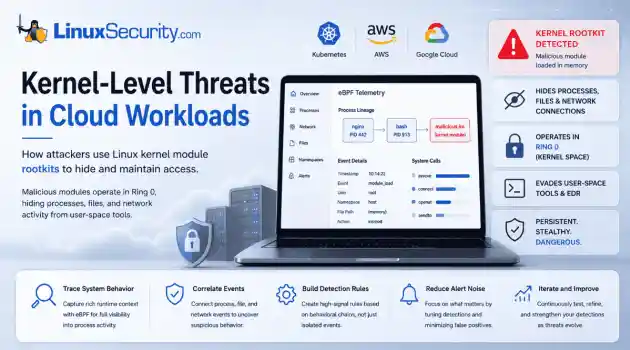
 Most of us think of Linux rootkits as ancient history—the stuff of 90s hacking forums and clunky malware that would crash your system if you looked at it the wrong way. But if you think they’ve gone away, you’re mistaken. They’ve just gotten smarter. . Modern attackers aren't using the noisy tools of the past. Today’s threats are surgical. Many of today’s most advanced Linux rootkits operate at the kernel level or abuse legitimate system features to blend in with normal traffic. They’re...
Jul 09, 2026
 security advisory hardening
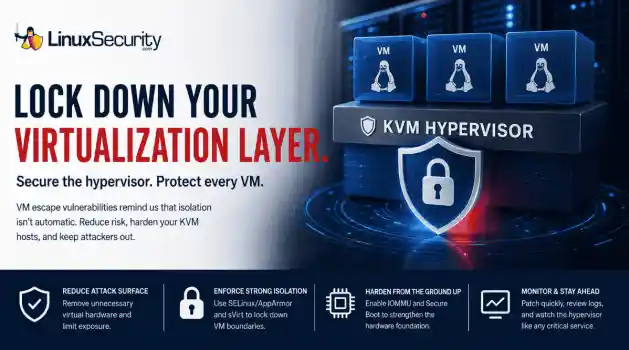
 A 16-year-old KVM vulnerability recently hit the news, and honestly? It’s a healthy dose of reality. We like to think of our hypervisors as these impenetrable walls, but this is a reminder that VM isolation isn't a permanent guarantee. Even in the most mature Linux virtualization stacks, you’ve got code paths that haven't been touched in over a decade, just waiting for the right researcher to pull on the wrong thread. For those of us running KVM hosts, this isn't just about grabbing the latest...
Jul 07, 2026
 security advisory linux
 If you think you know what’s running on your Linux host, you’re probably wrong. Not because you’re bad at your job—but because the kernel is lying to you. . I remember the first time I saw a kernel-level rootkit in the wild. We were debugging a performance spike on a cluster of web servers. Everything looked fine. top showed nominal CPU usage, ps listed the expected worker processes, and our security agent—a standard EDR tool—reported that the system integrity was "Green." But the network...
Jul 02, 2026
 network security threat detection
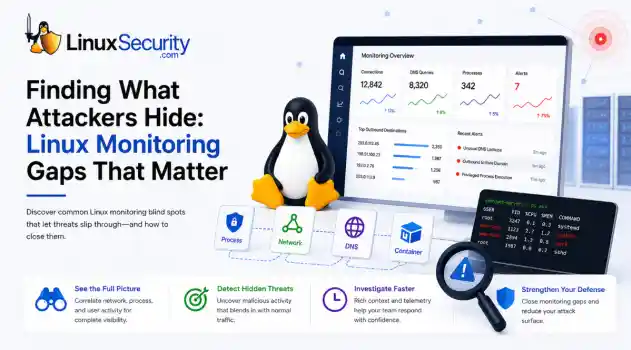
 If you’re relying on standard network logs to protect your Linux infrastructure, you’re flying blind. Most organizations believe they have network security monitoring because they’re capturing traffic, but they’re actually just collecting noise. Real security—the kind that stops an attacker—happens in the gaps between the network, the process, and the host. When an attacker breaches a Linux server, they rarely reach for a custom zero-day. They use what’s already there: curl, bash, python, or...
Jun 30, 2026
 Refine features
X Clear Filters
Get the latest News and Insights
Get the latest Linux and open source security news straight to your inbox.
Community Poll
Is application sandboxing truly safe?
Loading...
Explore Latest Linux Security features
We found 627 articles for you...
102
 unauthorized accesssecurity practicesLinux administration
How to Detect Unauthorized SSH Key Usage on Linux Systems
SSH persistence usually does not look malicious at first. The login succeeds normally, the session opens cleanly, and the account already exists on the server, which is exactly why attackers continue using SSH keys after gaining a foothold on Linux systems. . Once a public key is added to authorized_keys , the server treats future access as trusted authentication. Attackers no longer need password resets or repeated exploit chains every time they reconnect because the server now accepts the malicious key as trusted access. The result is direct shell access tied to an account that already has permission to be there. Most environments already have constant SSH traffic moving between administrators, automation systems, backup infrastructure, deployment pipelines, and cloud workloads. A malicious session does not stand out immediately when the same protocol is already handling legitimate operational access all day. This guide walks through how to identify unauthorized SSH keys, review login activity, investigate suspicious access, and figure out whether persistence already spread beyond the original account. Step 1: Review the authorized_keys File Most SSH persistence starts with a modified authorized_keys file. Attackers land on a system, gain shell access, then add their own public key so they can reconnect later without needing the original credentials again. Start by checking the current user’s SSH keys: cat ~/.ssh/authorized_keys Then check the root account directly: sudo cat /root/.ssh/authorized_keys Do not skim through the output. Read every line carefully. Older Linux systems tend to accumulate abandoned access over time. Older Linux systems tend to accumulate abandoned access over time, especially contractor accounts, old deployment users, and CI/CD credentials that nobody rotated after a migration. Shared administrative accounts, where ownership stopped being clear years ago. You are looking for keys nobody can confidently explain. Pay attentionto: unfamiliar usernames or email addresses duplicate keys across multiple accounts recently added entries unusually long comments accounts that should no longer have shell access keys tied to former employees Administrative accounts matter most here. A malicious key attached to an account with sudo rules or root access gives attackers long-term persistence that can survive patches, password resets, and partial remediation. Step 2: Check When SSH Files Were Modified Attackers rarely stop after adding a single key. Once persistence works, they often modify additional SSH files to make sure access survives cleanup later. Start by reviewing the .ssh directory itself: ls -la ~/.ssh Then check detailed timestamps for the key file: stat ~/.ssh/authorized_keys Review the SSH daemon configuration too: sudo stat /etc/ssh/sshd_config Unexpected modification times usually narrow the investigation quickly, especially on production systems where SSH configurations do not change often. This is where compromised environments start telling on themselves. Multiple SSH files modified within the same time window. Configuration changes nobody documented. Root account activity outside maintenance hours. Individually, those changes may not look serious, but the picture changes quickly once the same activity starts appearing across multiple SSH files and administrative accounts. Step 3: Search the Entire System for Additional SSH Keys One compromised account is rarely the whole problem. Once attackers get shell access, they usually spread persistence across secondary users, forgotten service accounts, deployment profiles, or backup infrastructure that nobody actively reviews anymore. Losing one account should not remove their access completely. That is the goal. Start by locating every authorized_keys file on the system: sudo find / -name authorized_keys 2> /dev/null Then search for recently modified SSH key files: sudo find /home -nameauthorized_keys -mtime -7 That command identifies files modified within the last seven days, although the timeframe should change depending on the investigation and the suspected compromise window. Look for patterns across the results. Multiple accounts modified together usually indicate that the attacker was trying to establish layered persistence instead of relying on a single foothold. Service accounts with interactive SSH keys also warrant attention, as they are rarely monitored as closely as standard administrative users. Old admin profiles nobody has accessed legitimately for months matter too. Service accounts get abused constantly in these investigations because they often retain broad access while receiving very little day-to-day monitoring. Step 4: Review SSH Login Activity A successful SSH login does not mean the activity is legitimate. Most attackers using SSH persistence authenticate normally because they are relying on trusted access mechanisms already accepted by the server. Start by reviewing authentication logs because this is usually where suspicious SSH access starts becoming visible. On Ubuntu and Debian systems: sudo grep "sshd" /var/log/auth.log On RHEL, CentOS, Rocky Linux, and similar distributions: sudo grep "sshd" /var/log/secure Then review the successful login history: last -a Start by reviewing authentication logs because suspicious SSH activity usually becomes visible there first, especially when attackers begin reusing trusted accounts across multiple systems. Administrative accounts authenticating from cloud providers that your team does not use. SSH sessions appear late at night against accounts that normally log in during business hours. One account touching multiple servers rapidly. Dormant users suddenly become active again after months of silence. Attackers depend on the fact that valid SSH logins rarely generate panic. The authentication succeeds, so the traffic initially looks routine. It usually is not. Step5: Check Shell History After Login Shell history often explains what happened after the attacker got access. Persistence rarely exists by itself. Once attackers establish a foothold, they usually start expanding privileges, modifying permissions, collecting credentials, or preparing fallback access in case the original account gets disabled later. Start with the current user: cat ~/.bash_history Then check privileged accounts: sudo cat /root/.bash_history Watch for commands involving: sudo useradd passwd curl wget chmod chattr ssh-copy-id modifications to .ssh tunneling or port forwarding Empty history files matter, especially on accounts that should normally contain daily administrative activity. Attackers regularly clear shell history after modifying SSH access or escalating privileges. Sometimes they disable logging entirely before moving deeper into the environment. Step 6: Review Active SSH Sessions Before digging further through logs, check whether someone is still connected. SSH persistence is not always historical activity. Sometimes the attacker never left the system. Start with active users: who Then review current sessions: w To identify active SSH connections: sudo ss -tp | grep ssh Or: sudo netstat -plant | grep ssh Pay attention to long-running sessions, unfamiliar IP addresses, or multiple simultaneous logins tied to the same account. Outbound SSH connections matter too. Compromised Linux servers often become pivot points once attackers start moving laterally across the environment. Attackers rarely stop after compromising a single Linux host, particularly when the environment already contains trusted SSH relationships between systems. Step 7: Review SSH Configuration Settings Attackers do not always stop at planting keys. Weakening SSH restrictions makes future access easier, especially if they expect defenders to remove the compromised account later. Open theSSH daemon configuration: sudo cat /etc/ssh/sshd_config Focus on settings tied to: PermitRootLogin PasswordAuthentication PubkeyAuthentication AllowUsers AllowGroups Example hardened settings: PermitRootLogin no PasswordAuthentication no PubkeyAuthentication yes Restart the SSH service after making changes: sudo systemctl restart sshd Or on Ubuntu systems: sudo systemctl restart ssh Configuration changes tell you a lot about attacker intent. Modified root access settings, relaxed authentication rules, and broad user permissions added during the compromise window usually reveal that the attacker was planning for long-term persistence rather than short-term access . Attackers think ahead here. Step 8: Remove Unauthorized SSH Keys Once you identify a malicious or unapproved key, remove it immediately from the affected authorized_keys file. Open the file: nano ~/.ssh/authorized_keys Delete the suspicious entry and save the changes. That does not mean the compromise is contained. Attackers who establish SSH persistence often modify multiple accounts before defenders notice the intrusion. Attackers that establish SSH persistence often spread access across service users, backup infrastructure, automation credentials, and occasionally root accounts before defenders notice the intrusion. After removing the key: Rotate passwords tied to the affected account Review sudo rules Audit nearby systems for the same key Investigate how the original foothold happened Check for additional persistence methods Skipping those steps usually leads to reinfection later. Step 9: Enable Ongoing SSH Monitoring Most organizations only investigate SSH access after an incident already exists. By then, persistence may have survived quietly for weeks or months. At minimum, enable: centralized SSH logging alerts for changes to authorized_keys monitoring for .ssh directorymodifications login alerts tied to privileged accounts MFA-backed administrative access where possible Reviewing SSH activity across systems also helps expose suspicious behavior that local logs may miss. Servers suddenly connecting to unfamiliar infrastructure or administrative accounts authenticating against systems they normally never access should immediately trigger review. Repeated SSH activity tied to cloud IP ranges nobody internally recognizes. That is usually where persistence starts becoming visible at scale. Common Mistakes During SSH Investigations One of the biggest mistakes teams make is treating the compromised account as the entire incident. Attackers rarely stop there once shell access exists. Old deployment users get reused constantly, while shared administrative accounts gradually lose attribution as teams change and environments expand. Backup infrastructure often has broad SSH trust relationships that nobody reviews closely because the systems are considered operationally sensitive. CI/CD credentials spread across environments and stay active long after projects end. Linux environments accumulate trust quietly over time. That is what makes SSH persistence effective in the first place. Teams also miss direct monitoring for changes to authorized_keys , which leaves attackers free to modify trusted authentication paths without generating the kinds of alerts normally associated with malware or exploit activity. Persistence tied to trusted authentication paths often survives the longest because the activity continues looking operational instead of obviously malicious. Final Thoughts Unauthorized SSH key usage remains difficult to detect because the access often looks legitimate long after the original compromise. The login succeeds normally, the account already exists, and many environments still trust SSH traffic by default as long as authentication passes cleanly. That is why attackers continue using SSH persistence after gaining a footholdon Linux systems. A single compromised account can quietly turn into broader access across backup infrastructure, deployment pipelines, cloud workloads, and administrative systems if nobody is actively reviewing SSH keys, login activity, or configuration changes. Regular audits help. So does monitoring for changes to authorized_keys , reviewing authentication logs, and validating who actually owns long-standing SSH access across the environment. Most persistence survives because teams assume trusted access is still legitimate months after it stopped being safe. Stay ahead of new Linux threats, persistence techniques, and security research by subscribing to the LinuxSecurity newsletters. You will receive Linux advisories, threat analysis, practical hardening guidance, and new detection coverage directly in your inbox. Related Reading Understanding Linux Persistence Mechanisms and Detection Tools Linux Attackers Use SSH Legitimate Tools to Evade Detection Mastering SSH for Secure Linux Remote Server Management Understanding Outlaw Linux Malware: Defend Against Botnet Threats Strengthening Linux SSH Configurations to Prevent Proxy Attacks . Unauthorized SSH key usage remains tricky to detect, as attackers exploit seemingly legitimate access. Stay vigilant!. SSH key validation, unauthorized access detection, security monitoring, Linux server management, SSH auditing. . Dave Wreski
 Jun 26, 2026
•
Jun 26, 2026
•
102
 network securitythreat detectionSuricata
Monitoring East-West Traffic with Suricata: Finding Threats Inside Your Network
Most security teams are locked into a perimeter-first mindset. They obsess over north-south traffic—the data hitting the edge—while ignoring the reality of the modern data center. Once an attacker gets a foothold, they don't stay at the edge. They pivot. They move laterally. That's the east-west traffic problem: the internal chatter between servers, microservices, and databases that we treat as "trusted" simply because it’s inside the fence. . Using Suricata for east-west monitoring isn't about deploying another sensor. It’s about building a detection strategy that turns that internal silence into data. Note on Infrastructure: This guide assumes the use of a Linux-based sensor. Suricata’s ability to achieve high-throughput, real-time packet inspection relies on Linux-native kernel interfaces like AF_PACKET and eBPF . The tools used for analysis— jq , tcpdump , and ethtool —are standard utilities in the Linux ecosystem, making it the industry-standard OS for high-performance security monitoring. What Is East-West Traffic? In network security, we distinguish between two primary traffic flows: North-South: Traffic entering or leaving the network (ingress/egress). East-West: Traffic moving laterally between systems inside the environment. North-South Traffic East-West Traffic User browsing a website Web server communicating with a database Customer accessing an application Application server talking to another application Email arriving from the internet Domain Controller authenticating users Data leaving for a cloud service Administrator connecting to a server via SSH Most organizations already monitor north-south traffic extensively because it crosses the network perimeter. East-west traffic is different. Because it stays inside the wire, it is often blindly trusted. In reality, internal communications frequentlycontain the earliest indicators of a compromise. Why Attackers Care About Internal Traffic When an employee clicks a phishing link and installs malware, the attacker isn't finished—they are just getting started. Their objective is movement. They spend hours, or even days, identifying systems, discovering drives, enumerating user accounts, and testing remote access. This is lateral movement. Rather than attacking directly from the internet, the adversary pivots through your environment to reach a high-value target. This activity creates network noise: workstations scanning subnets, accounts accessing administrative shares, and unexpected SSH or RDP connections. If you aren't monitoring this, you are letting the attacker move freely through your "safe" zone. What Is Suricata? Suricata is an open-source engine designed to inspect network traffic in real time. It is far more than a basic packet capture tool; it acts as an IDS, an IPS, or a powerful NSM platform. Suricata understands application-layer protocols—like HTTP , TLS , DNS , SMB , and SSH . This allows you to identify suspicious behavior based on protocol patterns rather than relying on brittle IP and port matching. For internal monitoring, this application-layer visibility is your most powerful weapon. Why Use Suricata for East-West Monitoring? Internal networks are rarely as clean as we hope. They are full of accumulated complexity: legacy apps with undocumented connections, misconfigured services, and administrative tools that reach across segments. When you start inspecting this traffic with Suricata, you will discover behavior you didn't know existed. While not all of it is malicious, seeing it is the only way to establish a baseline. You need to know exactly which services are talking, the protocols they are using, and the patterns that define your stack. A Simple Real-World Example Consider a three-tier application: Web Server: Receives user requests. Application Server: Processesbusiness logic. Database Server: Stores application data. Under normal conditions, these paths are predictable. But if Suricata suddenly flags an employee workstation establishing SMB sessions directly to your database, you have an immediate red flag. It may be legitimate, or it may be an indicator of stolen credentials or unauthorized discovery. Without east-west visibility, that connection is invisible. Where Should You Deploy Suricata Sensors? You can’t mirror every port in the rack—that’s a recipe for packet loss and a mountain of useless logs. Strategic placement is the only way to scale. Protect the Crown Jewels: Focus sensors on segments housing Domain Controllers, sensitive databases, and management VLANs. Lateral movement dies when it hits a monitored high-value segment. Monitor Trust Boundaries: Place sensors at the chokepoints between internal segments . If your web tier is separate from your app tier, that is your first deployment point. Passive Over Inline: Start in Passive Mode using a TAP or a SPAN port. Don't go inline until you know what your "normal" looks like. Putting a blocking IDS in front of an internal application without a baseline is how you create your own outage. Build a Baseline Before Writing Rules A tool is only as good as the logic you feed it. Don't write rules until you see the data. Use jq on your Linux command line to parse your eve.json logs and identify the most frequent talkers. Find the most frequent internal talkers: Bash grep '"event_type":"flow"' eve.json | \ jq -s 'group_by(.src_ip, .dest_ip) | map({src: .[0].src_ip, dest: .[0].dest_ip, count: length}) | sort_by(.count) | reverse' | head -n 10 What Should You Detect? Focus your rule set on behavior, not signatures: Internal Recon: Alert on internal port scanning. An app server shouldn't be running an nmap scan against its neighbor. Credential Abuse: Look for SMB admin share access or unusual RPC calls. Protocol Abuse: Flag unauthorized SSH , RDP , or WinRM traffic between hosts that have no operational business communicating. Context is Everything If Suricata fires an alert, a log processor needs to tag it with asset criticality. An alert on a dev server is background noise; the same alert on a Domain Controller is an immediate incident. Workflow: From Detection to Investigation Suricata creates high-fidelity logs, but logs aren't answers. You need a workflow: Pipeline: Feed eve.json into a centralized logging stack. Noise Reduction: If your configuration management tool (e.g., Ansible ) hits every server on port 22 every 30 minutes, suppress those alerts early. Correlation: When an alert fires, pivot to your endpoint logs. Did that internal alert on Server A happen at the exact same time as a suspicious PowerShell execution? That's your correlation. Monitoring Encrypted Internal Traffic East-west traffic is increasingly encrypted. You don't need to decrypt every packet to gain visibility. Log TLS Metadata: Use Suricata to log the SNI (Server Name Indication) to see which domains are being requested. Fingerprinting: Use JA3/JA3S fingerprints to identify clients. A standard browser looks different than a custom Python lateral movement script. Identify Protocol Mismatches: Catch services running on the wrong ports: Bash grep '"proto":"SSH"' eve.json | grep -v '"dest_port":22' ## Performance Considerations Monitoring east-west traffic often means dealing with significantly higher volumes than the perimeter. Because Suricata is running on Linux, you have granular control to optimize performance: * **CPU Affinity:** Pin processing threads to specific physical CPU cores in suricata.yaml to prevent context switching from killing your throughput. * **Disable NIC Offloading:** Always disable LRO/GRO to ensure Suricata sees the full packets: ```bash sudo ethtool -K eth0 gro off lro off NUMA Locality: Ensure your NIC and the CPU cores running Suricata are on the same NUMA node to avoid memory access latency. Verify What the Sensor Sees Never assume the sensor is seeing the traffic. Use tcpdump to verify: Bash sudo tcpdump -i eth1 -n host 192.168.1.50 Final Thoughts Internal monitoring is a game of diminishing returns if you let the noise level get out of hand. Analysts will ignore your tools if they're constantly crying wolf. Suricata is a beast of an engine, but it doesn't run itself. By focusing on high-value segments and prioritizing visibility over blocking, you turn your internal network from a "safe zone" into a controlled environment where lateral movement is finally visible. . Explore how Suricata enhances east-west traffic monitoring for better internal network security against lateral attacks.. Suricata, threat detection, internal monitoring, east-west traffic, network security. . Anthony Pell
Jun 24, 2026
•

102
 security advisoryinfrastructure risksAryStinger
AryStinger: Why Thousands of Unpatched Linux Routers Are Being Weaponized
More than 4,300 internet-facing devices have been pulled into a newly documented router malware campaign called AryStinger. The infected systems are mostly not enterprise servers. They are older routers, NAS appliances, and embedded Linux devices that stayed online long after anyone was likely checking them. . QiAnXin XLab researchers found that the campaign is leaning on known vulnerabilities, including flaws that have been public for years. That is the important part. AryStinger does not need a new exploit chain when exposed devices are still running old firmware and no longer receiving security updates. What Is the AryStinger Botnet? AryStinger is a botnet built around neglected edge devices. Once a router or NAS appliance is infected, it does not necessarily stop working. The router still routes traffic. The NAS may still serve files. In the background, the malware checks in with the control infrastructure and waits for tasks. That makes the compromise easy to miss. Nothing has to crash. No ransom note appears. The device simply becomes useful to someone else, effectively turning your hardware into a node for botnet malware analysis and offensive operations. Capabilities and Infrastructure Proxy malicious traffic: An infected router can act as a hop for traffic. To the outside service, the connection appears to come from the victim’s residential or business IP address. Remote command execution: The botnet can receive tasks, run commands, scan networks, and collect information from other systems. Persistence: The malware is designed to keep the device enrolled in the botnet instead of disappearing after the first reboot or network change. Obfuscated communication: AryStinger uses HTTP and HTTPS, with Protocol Buffers and XOR-obfuscated data. A quick packet capture will not show clear command text moving between the device and its control servers. Why This Matters The biggest risk is not that AryStinger steals data directly. It is that compromised routersbecome infrastructure for other attacks. An infected device can proxy malicious traffic, scan external networks, or help attackers hide their true location behind a legitimate residential or business internet connection. For organizations, that means a forgotten edge device can become an unmanaged security risk sitting inside the network perimeter. For home users, it is a reminder that routers should be treated like computers; once vendor support ends, newly discovered vulnerabilities often remain exploitable for the life of the device. The broader concern is scale. More than 4,000 compromised systems may sound small compared to some botnets, but campaigns like AryStinger succeed because unsupported routers remain online for years after security updates stop. Why Edge Devices Remain Prime Targets Routers and NAS appliances are often the last systems anyone checks. Servers get monitored. Workstations get endpoint tools. Cloud accounts get alerts. A small router in a branch office or home network may sit untouched for years. That is where AryStinger fits into the broader embedded device security landscape. These devices are usually always on, often exposed directly to the internet, and many affected D-Link and Realtek-based systems are already end-of-life. Once vendor updates stop, the device keeps working, but the security problem stays in place. Technical Architecture: Dual-Variant Design Researchers identified two malware variants designed for different Linux environments: The router variant: This version is written in C and built for lower-resource hardware, including older D-Link routers using Realtek RTL819X chipsets. The NAS variant: This version is written in Go and targets more capable Linux-based systems, including NAS appliances. The larger environment gives the malware more room to run scanning and follow-on tasks. A Familiar Pattern in Router Security News AryStinger follows the same pattern seen in campaigns such as AVrecon, SocksEscort, and TheMoon. Scanfor exposed devices. Find unsupported firmware. Exploit known bugs. Keep access. Use the device as infrastructure. As highlighted by Akamai Security Research and data from the Shadowserver Foundation , the malware name changes, but the weak point stays the same: we are deploying connected devices faster than we are decommissioning them. How Organizations and Home Users Can Reduce Risk Start with inventory. Find the routers, gateways, and NAS appliances that are still online, then check whether the vendor still supports them. If a device is end-of-life—as noted in official D-Link Security Advisories —replacing it is usually the real fix. Disable remote administration from the internet unless it is truly required. Remove Telnet, WAN-side web management, and unused services. Apply firmware updates where they still exist. Edge devices should also be monitored like other exposed systems. Unusual outbound connections, proxy-like traffic, and repeated scanning activity—which can be cross-referenced against AlienVault OTX —are not normal background noise. AryStinger is another reminder that forgotten linux malware and neglected devices do not disappear from the internet. They stay reachable, they keep running old code, and eventually, someone builds a massive IoT botnet out of them. . Over 4,300 Linux routers and devices compromised by AryStinger malware highlight risks in outdated firmware and management.. router malware, AryStinger, Linux security risks, vulnerable devices. . MaK Ulac
Jun 22, 2026
•
102
 security advisoryrisk managementpatch management
Does Linux Give Users a False Sense of Security? What This Year's Biggest Linux Security Incidents Actually Reveal
If more than 12 million enterprise systems can be exposed by flaws in a security control designed to harden Linux, it's probably worth asking whether Linux gives people a false sense of security. That's a question that has come up repeatedly throughout 2026. . This year alone, researchers have disclosed privilege-escalation vulnerabilities, root-level kernel flaws, and multiple supply-chain compromises affecting Linux environments. That doesn't mean Linux suddenly became insecure. It means that vulnerabilities still exist, trusted software can still be compromised, and security depends on much more than the operating system itself. Linux earned its reputation for security, but that reputation can sometimes lead people to assume they're safer than they actually are. Why Linux Earned Its Reputation It did not get that reputation by accident. The controls are real. They change how a system behaves after something goes wrong. They limit what a normal user can touch, what a compromised process can modify, and how much software is exposed in the first place. Permission separation: Keeps normal users and compromised processes away from root-level access. Open-source code: Can be inspected by researchers, maintainers, and security teams. Package managers: Centralized repositories make updates easier to distribute and discourage downloading random executables. Security frameworks: Tools like SELinux and AppArmor restrict what processes can do after they are already running. These aren't cosmetic advantages. They reduce exposure and slow down privilege abuse. The mistake is treating these controls as the end of the security conversation. When Advantage Becomes Misconception The misconception starts when those advantages get turned into assumptions. Fewer visible attacks get read as no attacks. Open source gets treated as if someone has definitely reviewed the code. Security features get mistaken for secure outcomes. The operating system gets all the attentionwhile identities, packages, and build systems sit in the background. That matters now more than ever: Trusted workflows: A malicious package doesn't need to defeat the Linux permission model if a developer installs it inside a trusted CI/CD pipeline. Credential exposure: An exposed credential does not care which distribution is running underneath it. Operational reality: A weak build system can leak secrets while the host OS behaves exactly as configured. The systems that stayed protected in 2026 were not protected because they ran Linux. They were protected because vulnerabilities were patched, dependencies were managed, and security controls were maintained. The Problem With Assuming Security by Default: Copy Fail The Copy Fail ( CVE-2026-31431 ) kernel flaw was a reminder that even core components are not exempt. It was a local privilege escalation, meaning an attacker with low-privileged access could move to root. What stood out wasn't the bug—privilege escalation happens in every major OS—but where it lived. Administrators weren't dealing with a neglected third-party package; they were patching a core component. The systems that stayed vulnerable didn't fail because Linux was insecure. The lesson wasn't about kernel design. It was about patch management. A vulnerability with a fix is no longer a software problem; it's an operational one. Mature Code and the Myth of Review: Dirty Frag Dirty Frag ( CVE-2026-43284 and CVE-2026-43500 ) affected mature networking components like IPsec ESP and RxRPC. These aren't experimental features. They are established parts of the networking stack. The assumption is usually: The component has been around forever. Large organizations use it. If something serious existed, somebody would have found it by now. Dirty Frag showed that complex networking code accumulates edge cases over time. Stability and security are related, but they are not the same thing. Public code can be examined by anyone, but that does not meaneveryone is looking at it. Old code earns trust; it does not earn immunity. Complexity as an Implementation Problem Sometimes a vulnerability is the result of architectural complexity. Sometimes it’s a single character. A 2026 kernel flaw came down to a small implementation mistake that created a privilege escalation path for containers. These bugs are frustrating not because they are common, but because they are ordinary. There was no failed security model. The problem was that inside a massive codebase, one small mistake survived long enough to become a vulnerability. The kernel contains millions of lines of code; complexity creates opportunities for mistakes, regardless of the review process. The Attack Surface Shifted The compromises involving Nx Console and the Mini Shai-Hulud campaign were notable because Linux often wasn't the target. The target was trust. Compromised packages: Can expose secrets within a build. Stolen credentials: Provide access to cloud infrastructure and Kubernetes environments. The human element: The XZ backdoor attempt showed that maintainer relationships and social engineering are as important as the code. Visibility helped uncover these problems, but visibility alone did not prevent them. That is why initiatives like SBOMs and software provenance are gaining attention. The goal is to make trust easier to verify. In several recent supply-chain incidents, organizations weren't breached through a kernel exploit at all. They were breached because trusted software, build pipelines, or credentials became part of the attack path. What Actually Protects Linux Systems The incidents of 2026 happened because vulnerabilities existed, software became complex, and trust relationships were abused. The OS matters, but what surrounds it matters just as much. For desktop users: Apply updates, enable MFA, and treat browsers as a primary attack surface. For self-hosters: Harden SSH, maintain a regular patching schedule, andreview which services are exposed to the internet. For developers: Audit dependencies, secure CI/CD pipelines, and scan containers before deployment. For enterprise admins: Prioritize identity protection, monitor endpoint visibility, and review supply chain controls. Notice how few of these depend on Linux specifically. That’s the point. Linux remains one of the strongest security platforms available. But the real danger is not choosing Linux. The real danger is assuming Linux removes the need for patching, monitoring, governance, and operational discipline. 2026 has already provided several reminders why. Want more Linux security news, vulnerability analysis, and software supply chain updates? Subscribe to the LinuxSecurity Newsletter and get the latest threats, advisories, and expert insights delivered directly to your inbox. Related Reading Linux Security Uncovered: Open Source, User Privilege, and Defense Tactics Why Linux Supply Chain Attacks Are Becoming a Nightmare for DevOps Teams Nx Console Supply Chain Breach Shows How Trust Becomes the Attack Surface . In 2026, Linux systems faced multiple security incidents highlighting the importance of patching and operational discipline.. Linux Security, Vulnerability Management, Incident Response, Cybersecurity Best Practices. . MaK Ulac
Jun 15, 2026
•
102
 security advisoryattacklinux
Cron Job Abuse For Linux Persistence Mechanisms Detection
A Linux server gets cleaned up after an intrusion. The suspicious process is terminated, credentials are rotated, and the system is rebooted during maintenance. Everything seems secure. A few hours later, the same outbound connection appears again. . Situations like that point to persistence . The attacker no longer needs the original exploit because something on the host continues restoring access behind the scenes. Finding that mechanism is often more important than understanding how the compromise started in the first place. Linux attackers rarely need complicated malware for this. Built-in operating system features already provide reliable ways to execute code, survive reboots, and maintain a foothold. cron sits near the top of that list. It is trusted, widely deployed, and present on almost every Linux distribution. For an attacker, that combination is hard to ignore. Why Attackers Use Cron to Maintain Access Attackers spend a lot of time looking for ways to keep access after the initial compromise. Getting into a system is one thing. Staying there after a password reset or a reboot is the harder part. MITRE ATT&CK tracks this behavior under T1053.003: Scheduled Task/Job: Cron , which documents how adversaries use cron jobs for both persistence and execution on Linux systems. The functionality is already there. It is native to the OS. Because scheduled tasks are expected and necessary, creating a new job requires very little effort. Most defenders spend their time reviewing login events, suspicious processes, or malware alerts. They rarely spend the same amount of time reviewing the configuration files that control scheduled activity. That environment helps malicious entries blend in . A scheduled downloader or persistence script sits beside legitimate backup jobs, log maintenance scripts, and monitoring tasks. It hides in plain sight, often going unnoticed for months. What Cron Abuse Looks Like Creating cron-based persistence is straightforward. The approach usuallydepends on the level of access the attacker controls. User Crontabs When an attacker only controls a standard user account, they often start with their own crontab. They run crontab -e . From there, they add a task that runs every few minutes. The job might reconnect to command-and-control infrastructure, launch a payload, or download additional tooling. None of it requires elevated privileges. Root-Level Access Root access changes the equation entirely. A scheduled task running as root inherits whatever control root already has. An attacker who reaches this level can create access that survives reboots while maintaining the ability to execute commands with the highest privileges available on the system. At that point, the cron job is no longer supporting the intrusion. It becomes part of how the attacker keeps control. The /etc/cron.d/ Directory Not every cron entry lives inside a user crontab. Linux systems use the /etc/cron.d/ directory to store separate scheduling files for applications and services. Attackers like this location because a new configuration file can blend into an already crowded directory. Investigators often review the main crontabs while overlooking a file tucked away in this folder. That gap is all an attacker needs. The @reboot Directive Sometimes attackers do not care about the recurring execution every hour. They just want their code to run whenever the host comes back online. The @reboot directive handles this. The configured command launches automatically after startup. Maintenance windows, patch cycles, and power outages become opportunities for the payload to execute again. The entry may sit quietly for weeks. Then a reboot happens and the payload returns. Remote Payload Retrieval Attackers do not always store malware locally on disk. The cron entry acts as a delivery mechanism. Commands using curl , wget , or python retrieve content from remote infrastructure at regular intervals. Updating thepayload becomes as simple as changing a file on the attacker's server. The cron entry never changes. The payload behind it can. How to Hunt for Malicious Cron Jobs If you suspect persistence, stop hunting for active processes and start auditing configuration files. You need to see what is scheduled to run. Manual Audit Commands Start by checking the crontabs for the current user and for root: crontab -l sudo crontab -l Next, inspect the common system-wide locations. A quick way to list these files is: ls -la /etc/cron.* /etc/crontab /var/spool/cron/ Commands are easy. Interpretation is harder. Inspecting Locations Do not just look for files. Look at their contents. You are trying to identify scheduled commands that do not belong. If you find a file in /etc/cron.d/ that does not match a known application, open it and read the command. If it launches a script, follow the path and see what that script actually does. A surprising number of investigations stop after locating the cron entry. The useful evidence is usually one step further down the chain. Questions to Ask During a Cron Investigation Finding a cron job is only the beginning. The next step is determining whether the scheduled task is legitimate or suspicious. When reviewing an entry, ask: Does the command connect to an external IP address or domain? Is the script owned by an unexpected user? Does the job execute from temporary directories such as /tmp , /dev/shm , or /var/tmp ? Does the command contain encoded content, such as base64 strings? Was the cron entry created outside normal change-management windows? Does the task run more frequently than expected? Can the entry be tied to a known application, service, or administrative process? The more unusual characteristics a cron job displays, the higher its investigative priority should become. How to Detect Cron Abuse at Scale Large environments require continuous monitoring rather than periodic reviews.Security teams should treat cron configuration files as high-value assets and monitor them the same way they monitor sensitive system binaries. At that point, the goal shifts from finding cron jobs to monitoring the activity they create. Elastic Security Labs includes cron among the Linux persistence mechanisms defenders should routinely monitor when investigating post-compromise activity. Monitoring Modifications Use tools such as auditd or File Integrity Monitoring (FIM) to track changes. You want an alert whenever someone modifies /etc/crontab or creates a new file inside /etc/cron.d/ . These locations rarely change on stable systems. Any unexpected modification deserves attention. A cron entry has to be created somewhere. Catching that change early is often easier than detecting the payload later. Analyzing Process Lineage If you have EDR telemetry or system logs, look at parent-child process relationships. A legitimate maintenance script may launch a shell. What deserves attention is cron consistently spawning network-facing utilities, scripting engines, or unexpected binaries. Examples include: cron → curl cron → wget cron → python cron → bash Detection engineers frequently hunt for these execution chains because cron spawning network utilities or scripting interpreters can indicate activity. Elastic maintains a public hunting rule focused specifically on cron-based persistence . Indicators That Deserve Immediate Review Certain findings consistently move to the top of the queue during a cron investigation. None prove malicious activity on their own, but they appear often enough that they deserve immediate review. Network Activity: Any cron job calling curl , wget , nc , or ssh . Encoded Commands: Obfuscated strings, heavy use of base64 , or long bash one-liners. Execution Paths: Scripts or binaries running from /tmp/ , /dev/shm/ , or /var/tmp/ . New Entries: Any cron file with a recent modificationtimestamp that cannot be explained through patching or change management. Root-Owned Tasks: Unexpected scheduled tasks running as root that do not tie back to a known service or administrative process. Why Cron Still Works Cron remains one of the most reliable persistence mechanisms available on Linux systems because it is simple and effective. Attackers continue using it because they do not need anything more complicated. Most cron-based persistence is not particularly sophisticated. It works because nobody is looking for it. That makes visibility more valuable than complexity. Related Reading Linux Persistence Hunting: Essential Detection Techniques Detecting Systemd Abuse on Linux Servers for Better Security Linux Attackers Use SSH and Legitimate Tools to Evade Detection Auditd vs eBPF: Modern Approaches to Linux System Monitoring . Situations like that point to persistence. The attacker no longer needs the original exploit because. linux, server, cleaned, intrusion, suspicious, process, terminated, credentials. . Dave Wreski
Jun 08, 2026
•
102
 threat detectionscalabilitylog management
How Open Source SIEM Architectures Scale Beyond Single-Server Deployments
Building a SIEM is easier than scaling one. Most open-source deployments start as a simple "all-in-one" server. It is easy to set up, but that design rarely survives the transition from a lab to a production workload. . A SIEM watching 20 endpoints is not doing the same job as one watching 500. More endpoints mean more logs; more logs require more storage; more storage makes search heavier. Eventually, the very architecture that made your lab easy to deploy becomes the reason your production system fails. Production environments diverge from homelab setups because collection, storage, search, and analytics scale at different rates. Why Open Source SIEM Tools Struggle to Scale A typical first SIEM deployment runs everything on one virtual machine. This works for small environments because the workload is low. However, as the organization grows—adding authentication logs, firewall records, and cloud audit events—that architecture cracks. A Wazuh deployment monitoring 25 endpoints might generate thousands of events per hour, while a much larger deployment with 500 endpoints can process far more events in the same period. The architecture that worked on a single VM struggles with storage growth, indexing delays, and slow searches. SIEM Architecture Pattern #1: Scaling Log Management and Search Most hobby deployments run collection, indexing, storage, and search on the same server because it is simple. Mature environments eventually separate these workloads because each one scales differently. Dedicated ingest nodes receive and process incoming logs before they are indexed. Separating ingestion from storage and search prevents a spike in incoming data from slowing down your investigations or delaying your detections. If You Experience... Immediate Architectural Change Slow searches Move search workloads to separate, dedicated resources Storage filling quickly Implement hot/warm/cold storage tiers Delayed alerts Separate detection workloads from ingestion nodes Event backlogs Scale ingestion capacity horizontally SIEM Architecture Pattern #2: Design for High Availability and Failure Production SIEM architectures assume hardware failures, maintenance windows, and service outages will occur. The goal is not preventing failures; the goal is ensuring one failed component does not take the entire platform offline. Following the Wazuh architecture , environments typically move from a single manager to clustered deployments with redundant managers, distributed indexers, and load-balanced services. Failure Prioritization: Priority Component Reason 1 Storage/Indexing Historical data is often the hardest thing to recover 2 Manager/Controller Processes incoming events and runs detection logic 3 Collection Services Prevents data loss during network outages 4 Dashboard Useful for investigation, but not mission-critical SIEM Architecture Pattern #3: Building a Security Monitoring Pipeline Dashboards are only the view layer. Mature deployments treat the SIEM as a data pipeline. According to the Microsoft Sentinel architecture , data collection, analysis, retention, and automation are key parts of the pipeline. The biggest threat to this pattern is inconsistent data. If your logs aren't normalized—for example, if one source calls a field user and another calls it account_name—your detection rules will fail regardless of how powerful your infrastructure is. Decide: Pick five critical log sources. Verify that usernames, timestamps, hostnames, and source IPs are formatted consistently across all of them. Fix these "data-messy" spots before adding more dashboards. SIEM Architecture Pattern #4: Improving Threat Detection at Scale Morelogs do not automatically mean better security. Effective SIEM architecture best practices focus on what happens after data arrives: correlation and response. If you are building your first SIEM, prioritize detections that identify common attacker behavior rather than rare edge cases. Detection Why It Matters Failed logins followed by success Identifies potential password guessing New administrator account Identifies potential privilege escalation Login from a new system Identifies potential stolen credentials Security tool disabled Identifies potential attacker cleanup Decide: Build five reliable detective rules before adding five new log sources. A small number of working alerts is always more valuable than a massive pile of logs that no one is reviewing. What Leading SIEM Tools (Elastic, Wazuh, and Microsoft ) Get Right About Architecture Major platforms prove that architectural maturity is the only way to scale. Elastic: Their reference architectures focus heavily on workload separation. Scaling collection, indexing, storage, and search independently prevents one workload from overwhelming the platform. Wazuh: Their guidance shows how environments move to clustered deployments with redundant services and distributed indexers. Microsoft Sentinel: They treat the SIEM as a data platform where collection, retention, and automation are treated with the same importance as the alerts themselves. SentinelOne: Their approach emphasizes that detection and response are the ultimate goals, rather than just collecting as much data as possible. A Security Operations Roadmap for Growing SIEM Deployments Do not try to copy an enterprise architecture on day one. Build the next layer your environment actually needs. Environment Size Focus Pattern 1–50 endpoints Reliablecollection and basic detection logic. 50–250 endpoints Separate search resources from ingestion workloads. 250–1,000 endpoints Implement storage tiers and service redundancy. 1,000+ endpoints Full distributed architecture and automation pipelines. Scaling a SIEM is not about making the design complicated. It is about ensuring your collection, storage, search, and detection do not all depend on one fragile box. The organizations that scale successfully rarely start with perfect architectures. They gradually separate workloads, improve data quality, add redundancy, and invest in detection engineering as requirements grow. The sooner those patterns are introduced, the easier it becomes to scale without constantly rebuilding the platform. Related Reading Open Source SIEM Strategies Address Challenges for Small Teams OSSEC for Linux: Enhancing Monitoring and Risk Posture Management Linux Privilege Escalation Patterns and Mitigation Strategies Enhancing Linux Security With Ansible Automation Techniques Comprehensive Linux Security Tools and Hardening Best Practices 2026 AI-Driven Tools Enhance Linux Security Against Emerging Threats . A SIEM watching 20 endpoints is not doing the same job as one watching 500. More endpoints mean more. building, easier, scaling, open-source, deployments, start, simple, 'all-in-o. . Dave Wreski
Jun 04, 2026
•
102
 security advisoryapacheDoS
HTTP/2 Bomb: Why Linux Infrastructure is Vulnerable to a New Low-Bandwidth DoS Attack
A newly disclosed attack technique called HTTP/2 Bomb is drawing attention because it targets the software that sits at the front of much of the Linux internet. Apache HTTP Server, NGINX, Envoy, and the ingress layers that many Kubernetes environments depend on can be forced into consuming disproportionate amounts of memory using relatively small amounts of attacker traffic. . For Linux administrators, the concern is not the HTTP/2 protocol itself. It is the possibility that a single low-bandwidth attacker could disrupt the web servers, reverse proxies, and application gateways responsible for keeping production workloads online. The "Resource Amplification" Trap Researchers at Calif recently disclosed the technique, describing how HTTP/2 header compression and flow-control mechanisms can be abused to trigger significant memory consumption on affected systems. The attack combines a compression bomb with connection-stalling behavior, creating a situation where server resources continue accumulating while requests remain active. Most denial-of-service planning assumes attackers need large botnets or substantial network capacity. HTTP/2 Bomb shifts the burden onto the server itself. The attacker sends relatively little traffic while the target allocates memory, maintains state information, and struggles to reclaim resources quickly enough to remain responsive. Why Apache, NGINX, and Envoy are Ground Zero This attack is generating noise because it affects the technologies Linux administrators deploy every day. Apache and NGINX remain dominant web server platforms across hosting providers, enterprise environments, and public-facing applications. Envoy has become a foundational component of modern cloud-native infrastructure, appearing inside API gateways, service meshes, and Kubernetes ingress controllers. When these components experience resource exhaustion, the consequences extend beyond a single application. Reverse proxies stop accepting connections. API gatewaysbecome bottlenecks. Load balancing layers degrade. Kubernetes workloads may remain perfectly healthy while the infrastructure responsible for routing traffic to them begins failing under pressure. How the Mechanics Work: HPACK and Flow-Control Abuse HTTP/2 was designed to improve efficiency by reducing the overhead associated with traditional web traffic. One of the core features is HPACK , a header compression mechanism that minimizes data exchange by storing and reusing previously transmitted header information. According to the research, attackers can abuse HPACK’s indexed-reference system to trigger memory expansion on the receiving server. Relatively small requests force the target to allocate significantly larger amounts of memory than the attacker contributes. The second stage is what makes this a practical threat. Researchers combined this header abuse with HTTP/2 flow-control behavior that slows the release of allocated resources. Instead of freeing memory, affected systems hold state information while additional requests accumulate. The resource consumption grows until performance degrades or services become unavailable—effectively creating a "Slowloris" for memory. Why Kubernetes Operators Should Pay Attention The Kubernetes angle is particularly critical. Many organizations have shifted infrastructure toward Envoy-based architectures and gateway technologies. Traffic that once flowed directly to a web server is now routed through increasingly sophisticated networking layers designed to provide observability and security. That architecture delivers benefits, but it also concentrates risk. When ingress or gateway infrastructure becomes unstable, healthy workloads become inaccessible. For Kubernetes operators, the question is not simply whether a workload is vulnerable; it is whether the infrastructure supporting that workload can continue handling traffic efficiently when exposed to this style of resource amplification. Current Patch Status and Mitigation Vendors havealready begun responding: NGINX introduced a new max_headers directive to limit accepted request headers. Apache updated mod_http2 , improving header accounting and addressing conditions associated with the attack. Administrators should review vendor guidance directly and verify patch levels across production environments rather than assuming repository updates have reached every system. Internet-facing systems—specifically reverse proxies, API gateways, and ingress controllers—should be prioritized. What Linux Administrators Should Do Right Now The immediate priority is visibility. Identify Exposure: Identify which internet-facing systems currently support HTTP/2. Many organizations enabled it years ago and have rarely revisited those configurations. Validate Patching: Review vendor guidance, confirm software versions, and ensure updates are applied consistently across production, staging, and disaster recovery. Monitor Resource Patterns: Attacks based on resource amplification look different from volumetric DDoS. Monitor for growing memory utilization, worker exhaustion, connection failures, or unstable performance from systems that appear to be receiving modest traffic. Evaluate Ingress Routing: Kubernetes operators should review how HTTP/2 traffic terminates, is inspected, and is routed. Identifying where requests are handled is the first step in determining which components will experience pressure. The Bigger Lesson for Linux Defenders The most interesting aspect of HTTP/2 Bomb is the reminder that modern Linux infrastructure depends heavily on layers of software designed to improve efficiency. Those same optimizations can become attack surfaces when researchers discover ways to force systems into consuming resources faster than they can recover them. Linux administrators spend considerable effort defending against exploits and privilege escalation, but some of the most disruptive incidents begin with something far less dramatic. A trustedprotocol feature behaves in an unexpected way, critical infrastructure starts consuming resources faster than anticipated, and the systems responsible for keeping applications online become the weakest point in the environment. HTTP/2 Bomb is a story about infrastructure resilience—ensure your Apache, NGINX, and Envoy deployments are ready for it. Related Reading Critical NGINX Vulnerability CVE-2026-42945: What Linux Admins Should Check Now Securing Remote Access to Linux Servers: Best Practices for 2026 Linux IDS vs IPS: Operational Differences and Deployment Tradeoffs How to Diagnose Suspicious Outbound Connections on Linux Servers How to Respond After Detecting a Compromised Linux Server . For Linux administrators, the concern is not the HTTP/2 protocol itself. It is the possibility that . newly, disclosed, attack, technique, called, http/2, drawing, attention, because, targets. . MaK Ulac
Jun 04, 2026
•
102
 security advisoryimportantsupply chain
Compromised VS Code Extension Puts Linux Development Pipelines at Risk
The compromise of Nx Console shows how much infrastructure now sits behind a single developer account. GitHub repositories, CI/CD pipelines, container build systems, Terraform projects, Kubernetes deployments. None of those systems was the initial target. The workstation was. . Attackers did not need a Linux privilege escalation bug or a remote code execution chain. They needed developers to trust a tool they were already using. For many organizations, that was enough. What Happened? Federal authorities confirmed the compromise in a public alert covering Nx Console and associated GitHub repositories. According to the CISA advisory, the incident was tracked under CVE-2026-48027 and involved supply-chain activity affecting development environments. The compromise centered on Nx Console, a popular extension used by developers working with Nx-managed projects. Rather than targeting production infrastructure directly, attackers inserted themselves into a trusted part of the software development workflow. That matters because extensions already operate with broad visibility into projects, repositories, and developer activity. Nx maintainers later published an incident timeline in their security update , including affected versions, discovery details, and remediation guidance. Users running impacted releases were instructed to remove affected versions and update immediately. At a high level, the attack followed a pattern security teams have been seeing more often over the last several years. Compromise a trusted component. Collect credentials. Use existing trust relationships to move deeper into the environment. No exploit chain required. Incident Overview Item Details Incident Type Supply-chain compromise Affected Component Nx Console CVE CVE-2026-48027 Primary Target Developer credentials Secondary Risk Repository and CI/CD compromise Potential Impact Source code, secrets, infrastructure access How the Attack Worked Modern development extensions have a surprising amount of visibility. They can read project files, interact with repositories, inspect build processes, and in some cases, access authentication material already present on the system. That trust model exists for convenience. Attackers understand that. Research discussing the broader attack methodology, including credential theft and GitHub-focused abuse techniques, was later examined by Microsoft Threat Intelligence in its security research. The mechanics vary between incidents, but the objective rarely changes. Collect credentials that provide access to systems developers already use every day. GitHub tokens are particularly valuable because they collapse multiple attack stages into one. Instead of breaking into a repository, an attacker authenticates. Instead of probing infrastructure, they inspect deployment workflows and secrets already stored inside the environment. The token becomes the foothold. From there an attacker may be able to: Clone private repositories Review deployment workflows Access package registries Harvest CI/CD secrets Modify build pipelines Publish malicious code updates Establish persistence through automation None of those actions require root access on a Linux workstation. Sometimes they do not require touching the workstation again. Why GitHub Tokens Matter GitHub stopped being just a source code platform years ago. For many organizations, it functions as the operational center of the environment. Infrastructure definitions live there. Deployment workflows live there. Kubernetes manifests, Helm charts, Terraform projects, Ansible playbooks, cloud automation scripts. Same place. The value of a stolen token depends on permissions. The problem is that developers often need extensive permissions to do their jobs. A single account may have access to: Private Repositories: Source code theft GitHub Actions: Pipeline manipulation Package Registries: Malicious Releases Organization Secrets: Credential Exposure Infrastructure Repositories: Cloud and platform visibility Deployment Automation: Unauthorized changes That is why developer accounts keep showing up in modern attack chains. They sit between development and production. Attackers know it. The Linux Security Impact This is not really a VS Code story. It is a Linux infrastructure story that happens to begin inside a development tool. Many affected users run Linux workstations because they manage Linux environments. Ubuntu systems administering Kubernetes clusters. Fedora laptops maintain cloud infrastructure. Debian workstations managing CI/CD pipelines. Different distributions. Similar trust relationships. The workstation becomes the first hop. A compromised developer machine may expose: GitHub tokens SSH keys Cloud credentials Kubernetes configuration files Internal repositories Build automation scripts Not every stolen credential leads directly to production. Enough of them do. Teams often focus heavily on server hardening while developer systems quietly accumulate administrative access across multiple environments. An attacker does not necessarily need local privilege escalation when repository permissions already open the next door. CI/CD Pipelines Build systems represent one of the highest-value targets in a software environment. Once repository access is established, workflow definitions become attractive targets. A modified pipeline can collect secrets, alter builds, inject code into releases, or create long-term persistence that survives workstation cleanup. Those investigations get expensive fast. Containers and Kubernetes Container environments depend heavily on automation. Repositories define what gets built, where it gets pushed, and how it gets deployed. Attackers increasingly target the pipelinerather than the cluster itself. Modifying trusted deployment paths is often easier than breaking through cluster defenses. Infrastructure-as-Code Repositories Terraform and Ansible repositories frequently contain the blueprint for an entire environment. Even when secrets are managed correctly, those repositories reveal architecture, permissions, cloud services, deployment patterns, network layouts, and operational processes. An attacker can learn a great deal before ever launching a second-stage attack. The initial compromise happens on a workstation. The visibility gained afterward can extend across an entire organization. What Linux Developers Should Do Now The immediate priority is determining whether affected extension versions were installed and whether repository credentials may have been exposed. Organizations should review guidance published by Nx, GitHub, and CISA while treating exposed credentials as compromised until proven otherwise. Extension Review Remove affected extension versions Update to verified releases Review installed development extensions Check for unexpected modifications Credential Response Rotate GitHub personal access tokens Revoke unused credentials Review OAuth integrations Replace exposed secrets Repository Audit Review commit activity Inspect branch protections Check workflow modifications Examine the package publication history Investigate unusual logins CI/CD Review Rotate pipeline secrets Audit service accounts Validate deployment workflows Review recent build activity Lessons for Open Source Security Supply-chain attacks keep succeeding because they exploit trust that already exists. Developers trust extensions. Pipelines trust repositories. Production systems trust deployment workflows. Attackers do not need to build those relationships. They inherit them. That shift changes how Linux defenders need to think about risk. The boundary is no longer theserver. It is the entire path that leads to the server. Extension ecosystems, package registries, source repositories, CI/CD platforms, and developer workstations all sit inside the same attack surface now. Treating them as separate problems creates blind spots that attackers are increasingly willing to exploit. Conclusion The most important detail in this incident is what was not exploited. There was no Linux kernel vulnerability. No container escape. No exposed daemon is listening on the internet. The attacker gained leverage through a trusted development tool and moved through existing trust relationships from there. As more infrastructure becomes defined through GitHub repositories, containers, Kubernetes deployments, and infrastructure-as-code projects, developer workstations continue to increase in value. They hold credentials. They control pipelines. They connect directly to the systems organizations depend on every day. That makes them a target. Related Reading GitHub Actions Compromise CI/CD Supply Chain Risks Explored Why CI/CD Pipelines Are Targets in Software Supply Chain Attacks Risks of GitHub Repo Breach on Linux Supply Chain Security Why Linux Supply Chain Attacks Are Becoming a Nightmare for DevOps Teams GitHub Actions Linux Self-Hosted Runners Security Risks Open-Source Supply Chain Attacks Threaten Linux Production Systems . Attackers did not need a Linux privilege escalation bug or a remote code execution chain. They neede. compromise, console, shows, infrastructure, behind, single, developer, accoun. . MaK Ulac
Jun 03, 2026
•

Get the latest News and Insights
Get the latest Linux and open source security news straight to your inbox.
Community Poll
Is application sandboxing truly safe?
Search Topics
Powered By

Linux Security - Your source for Top Linux News, Advisories, HOWTOs and Feature Releases
QUICK LINKS
subscribe to newsletters!
Like staying secure? So do we.
Sign up for updates, tips, and alerts!